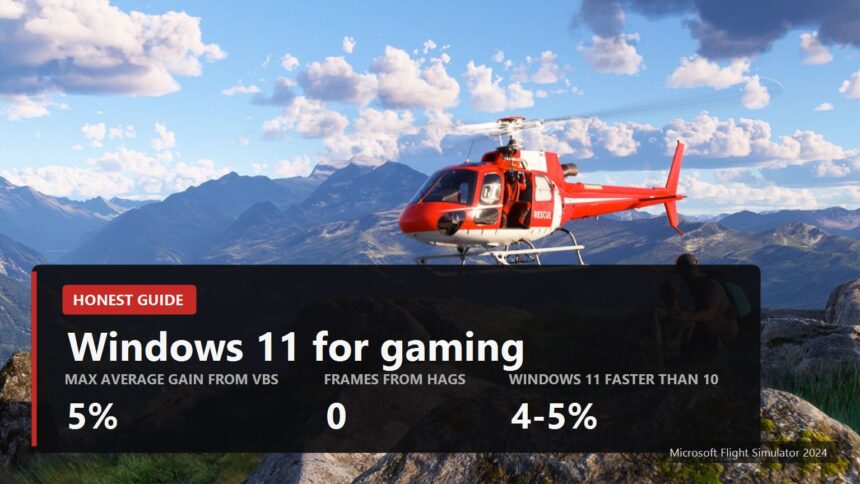
Almost every Windows 11 gaming guide promises 20 to 30 extra frames from a dozen toggles. That is not true. On a modern PC, the difference from system settings usually sits inside the margin of error, and only one setting reliably gives a few percent, at a cost to security. At FramesGames we kept only what is backed by measurements from outlets with open methodology and by documentation from Microsoft, AMD and NVIDIA. We also added the things worth checking not for frames, but because they are the ones most often set up wrong.
- How much Windows can actually give you
- Five things most often set up wrong
- Memory integrity: the only toggle with a measurable effect
- Game Mode, HAGS and windowed games: leave them on
- If you have a dual-CCD Ryzen X3D
- Myths: what does not work or does harm
- What to do in your case
- Everything in one table
- The short version

How much Windows can actually give you
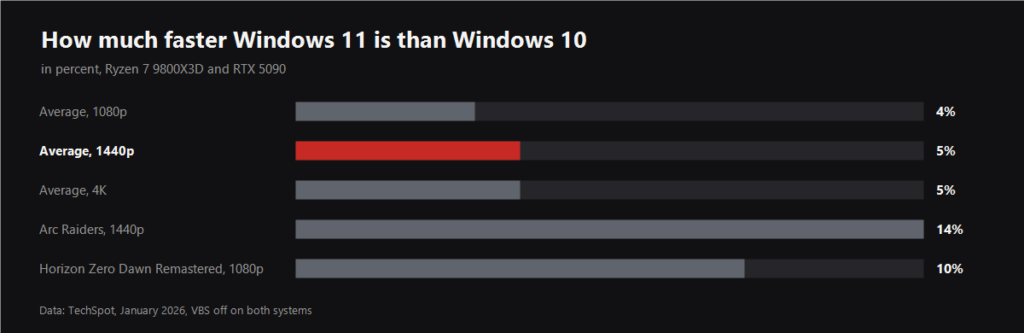
Frame rate is decided first by the graphics card, the processor and the game's own settings. The operating system moves things by percent, not by multiples. The clearest example is comparing Windows versions themselves. In January 2026 TechSpot tested Windows 11 25H2 against Windows 10 on a Ryzen 7 9800X3D with an RTX 5090, with virtualization-based security off on both. On average Windows 11 was 4% faster at 1080p and 5% faster at 1440p and 4K.
The spread inside that average is wide. In Arc Raiders Windows 11 was 11 to 15% ahead, in Horizon Zero Dawn Remastered 8 to 10%, Battlefield 6 showed no difference, and in The Last of Us Part II Remastered at 1080p Windows 10 was 6% faster in average frame rate. The takeaway is simple: the Windows version barely matters, and the popular claim that Windows 10 is better for gaming did not hold up. Windows 10 support also ended on October 14, 2025.
Five things most often set up wrong
| What to check | Where | What it gives you |
|---|---|---|
| Monitor refresh rate | Settings, System, Display, Advanced display | Windows sometimes leaves a 144 Hz monitor at 60 Hz. The game renders the same frames, but you only see up to 60 |
| Variable refresh rate | Same place, plus G-Sync or FreeSync in the driver panel | No tearing without the input lag of V-sync |
| Graphics and chipset drivers | NVIDIA, AMD, Intel or motherboard vendor sites | Fixes for new games, and on Ryzen X3D the chipset driver decides which cores a game runs on |
| XMP or EXPO memory profile | Motherboard BIOS | Without it memory runs at its base speed, not the one on the box. The difference depends on the game and is larger when the CPU is the limit |
| GPU on a laptop | Settings, System, Display, Graphics | A game can start on integrated graphics. Set it to high performance and play plugged in |
A word on Windows updates. There is no reason to turn them off for frames, and sometimes an update is exactly what brings a gain. The best known case from 2024 was the Ryzen branch prediction fix, after which AMD quoted 3 to 13% on Zen 5. It is now built into Windows, so all you need is to not sit on an old build.
Memory integrity: the only toggle with a measurable effect

Memory integrity, also known as HVCI, runs on top of virtualization-based security and stops malicious code from getting into the system kernel. It is on by default on new Windows 11 PCs. Microsoft itself says that in some gaming configurations memory integrity and the Virtual Machine Platform reduce performance, and suggests turning them off for people who put games ahead of protection.
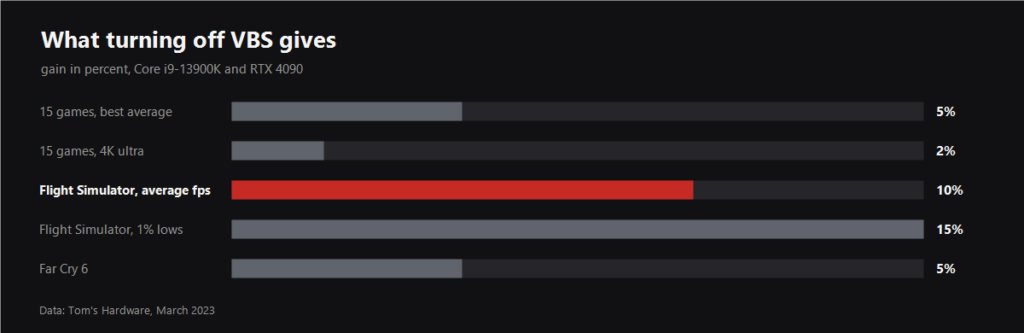
The best measurement of how much comes from Tom's Hardware in March 2023, on a Core i9-13900K and RTX 4090: 15 games at four resolution and settings combinations. Turning the protection off gave up to 5% across the suite and just 2% at 4K ultra. The biggest winner was CPU-bound Microsoft Flight Simulator, with about 10% more average frames and up to 15% better 1% lows. Far Cry 6 gained about 5%. So the effect is real, but it shows up in games and resolutions where the CPU is the limit, and nearly vanishes at 4K.
- Where to turn it off. Windows Security, Device security, Core isolation, Memory integrity. The Virtual Machine Platform is removed under Windows Features, but WSL 2 stops working without it.
- The cost. The kernel loses this layer of protection. The call is yours, and it is worth making deliberately rather than because another tweak list said so.
- Not the same as Secure Boot and TPM. Those are separate and should stay on: the anti-cheat in Valorant and Battlefield 6 will not start the game without them.
Game Mode, HAGS and windowed games: leave them on
| Feature | What it does | What testing showed | Advice |
|---|---|---|---|
| Game Mode | Prioritises the game, holds back updates and notifications | Microsoft promises no frame gain, and we found no tests showing a noticeable one | Keep it on: dual-CCD Ryzen X3D core scheduling needs it |
| Hardware-accelerated GPU scheduling (HAGS) | Moves GPU work scheduling from the CPU to the graphics card | GamersNexus: Hitman 2 138 vs 137.6 fps, GTA V 93 vs 94, F1 2019 on a Core i3 even 2.4% slower | Keep it on: DLSS Frame Generation does not work without it |
| Optimizations for windowed games | Moves DirectX 10 and 11 games in windowed and borderless mode to the modern presentation model | Per Microsoft, lower latency plus Auto HDR and VRR in a window | Keep it on, especially if you play borderless |
All three are usually already on in Windows 11. People often tell you to "check" them, although none of them adds frames. The point is different: Game Mode and HAGS are required by other features that only work on top of them.
If you have a dual-CCD Ryzen X3D
| Requirement | Why |
|---|---|
| Latest AMD chipset driver | It contains the 3D V-Cache Performance Optimizer and PPM Provisioning File drivers, which decide which die a game runs on |
| Game Mode on | It tells the driver a game is running |
| Xbox Game Bar installed and up to date | The driver uses it to detect games and park the cores without the cache |
| "Balanced" power plan | Required for core parking; you can switch the power mode to best performance in Settings afterwards |
This applies to the Ryzen 9 7900X3D, 7950X3D, 9900X3D and 9950X3D, where the extra cache sits on only one of the two dies. If a game lands on the other one, it loses the whole X3D advantage. That is why scripts that "clean out" Xbox Game Bar and a "High performance" power plan instead of Balanced are especially harmful here. The eight-core 7800X3D and 9800X3D have a single die, so none of this applies to them.
Myths: what does not work or does harm

| Advice | What actually happens | Verdict |
|---|---|---|
| Stripped builds and debloat scripts like Tiny11 | XDA compared Tiny11 with standard Windows 11: the difference was within the margin of error. These builds strip the Store and Xbox apps, and the most cut-down version cannot be updated normally | Not needed |
| Timer resolution tools | Per Microsoft's documentation, since Windows 10 version 2004 they no longer change the timer for other programs, including your game. Microsoft also warns that a high timer resolution reduces overall performance and blocks power saving | Useless |
| "Ultimate Performance" power plan | We found no tests with open methodology where it added frames on a desktop. On dual-CCD X3D chips it interferes with core parking | Not needed |
| Turning off Defender and updates | No measured gain in games, and a real risk | Harmful |
| Registry tweaks for ping | Ping depends on the route and the server. We found no tests where a registry tweak lowered ping in a modern game | Not needed |
| RAM cleaners and "game boosters" | Windows manages memory itself, and we found no tests showing a gain from these tools | Not needed |
| "Windows 10 is better for gaming" | TechSpot in 2026: Windows 11 was 4 to 5% faster on average | Did not hold up |
What these tips share is that they are easy to sell as a secret and hard to verify. If someone promises a gain, ask for the measurement: which hardware, which game, how many runs. An honest test has all of that.
What to do in your case

- Powerful PC, gaming at 4K. Go through the five checks and leave everything else alone. Memory integrity costs about 2% at 4K, so turning it off makes little sense here.
- Simulators, strategy and competitive games at 1080p. The CPU is the limit here, and turning off memory integrity can give up to 10%. If you accept the cost, it is the one setting worth digging into Windows for.
- Weak PC or 8 GB of RAM. Close background apps and overlays before playing. What Microsoft itself does for 8 GB systems is covered in a separate article.
- Laptop. Being plugged in and running the game on the discrete GPU does more than any tweak.
- Dual-CCD Ryzen 9 X3D. Chipset driver, Game Mode, Game Bar and the Balanced power plan. This is not a tip, it is what the processor needs to work properly.
Everything in one table
| Setting | Measured effect | Advice |
|---|---|---|
| Windows 11 vs Windows 10 | 4 to 5% on average, TechSpot | Latest Windows 11 build |
| Memory integrity off | up to 5% on average, 2% at 4K, about 10% in Flight Simulator, Tom's Hardware | Your call, at a security cost |
| Game Mode | no tests with a noticeable gain found | Keep it on |
| HAGS | within the margin of error, GamersNexus | Keep it on, Frame Generation needs it |
| Optimizations for windowed games | lower latency per Microsoft | Keep it on |
| Refresh rate and VRR | does not change frames, changes what you see | Must check |
| XMP or EXPO | depends on the game | Turn it on |
| Stripped builds, timer tools, registry tweaks | no gain found | Not needed |
The short version

- No set of toggles in Windows 11 will give you dozens of extra frames. Hardware and game settings do that.
- The only setting with a measurable effect is memory integrity: up to 5% on average and up to 10% in CPU-bound games, at the cost of kernel protection.
- Leave Game Mode, HAGS and windowed optimizations on: they add no frames, but Frame Generation and Ryzen X3D depend on them.
- Check your refresh rate, drivers, memory profile and laptop GPU. These are the things most often broken.
- Stripped builds, timer tools, registry tweaks and RAM cleaners are not backed by measurements.
Sources
Windows 11 25H2 vs Windows 10: TechSpot, January 27, 2026. Virtualization-based security: Tom's Hardware, March 14, 2023, and the Microsoft support page on gaming options. HAGS: GamersNexus, July 4, 2020; the Frame Generation requirement: NVIDIA Streamline SDK documentation. Windowed game optimizations: Microsoft. Timer resolution: timeBeginPeriod documentation. Ryzen X3D requirements: TechPowerUp review following AMD's instructions. Ryzen gain after the 2024 update: AMD's statement. Tiny11 vs standard Windows: XDA Developers.
Images: Microsoft Flight Simulator 2024 and ARC Raiders, official Steam store pages.