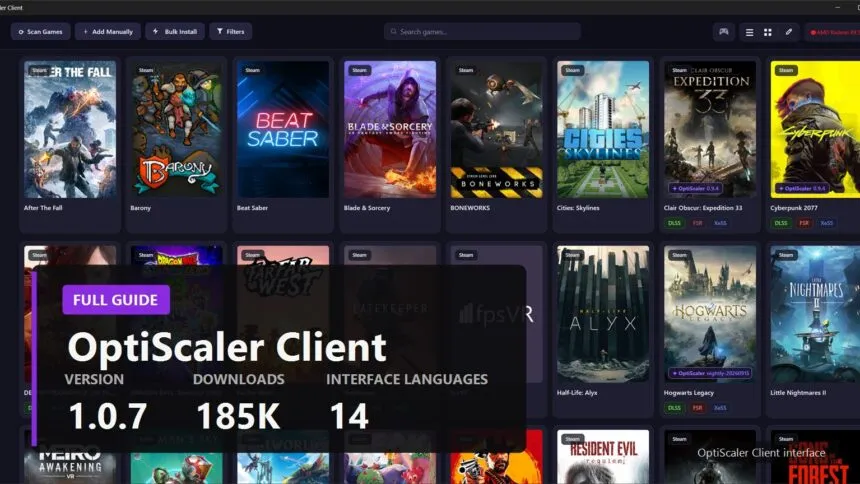
Short answer. OptiScaler Client is an open-source installer (GPL-3.0) by Agustinm28, not a product of the OptiScaler team, and its own description says you use it at your own risk. The code is public, but some files, such as the FSR 4 libraries and OptiScaler betas, come from mirrors run by the Client author rather than from the official pages. Download it only from the Releases page of the Optiscaler-Client repository on GitHub. If a game breaks, try OptiScaler installed by hand first: that tells you which project to report the bug to.
- How OptiScaler Client differs from regular OptiScaler
- Who makes it and can you trust it
- Where the program downloads files from
- Where to download it and how to avoid fakes
- Installation and first launch
- How to install OptiScaler into a game
- Frame generation and Multi Frame Generation
- Swapping FSR 4 without installing OptiScaler
- Profiles: settings without editing ini files
- Uninstalling, backups and where files live
- Linux, Steam Deck and gamepads
- Experimental features
- Common problems and fixes
- Two rules that matter more than anything else
OptiScaler Client is a program with a window and buttons that installs OptiScaler into games for you. OptiScaler itself is installed by hand: download the archive, find the folder with the exe, extract, rename the DLL, run the script. Client finds your games on its own, downloads the right version, picks the DLL name, backs up the game's files and rolls everything back with one button. Inside the game it is exactly the same OptiScaler, the only difference is how it gets there and how you manage it.
One important caveat up front: this is not a project from the OptiScaler team. The program is written by independent developer Agustín Montaña, and the OptiScaler authors state plainly on their page that they have no official manager app. Below is everything you need to decide whether to install Client and to use it without surprises. It was checked against the program's source code and the notes for every release as of 16 September 2026; the latest version, 1.0.7, came out on 15 September.
How OptiScaler Client differs from regular OptiScaler
OptiScaler is a mod, a library that sits between the game and the upscaler and swaps, say, DLSS for FSR 4 or XeSS. How it works and what it can do is covered in detail in our OptiScaler guide. OptiScaler Client adds nothing new to upscaling itself. It is an installer and manager: it downloads OptiScaler and the related files, puts them in the right game folders and keeps your settings.
| OptiScaler by hand | OptiScaler Client | |
|---|---|---|
| Made by | the OptiScaler team | independent developer Agustinm28 |
| Finding the game folder | yourself, next to the exe | automatic, 8 launchers, UE5 layouts included |
| DLL name | your choice or the setup script | picked from a list or from compatibility data |
| Backup of game files | only if you make one | automatic, outside the game folder |
| Removal | Remove OptiScaler.bat or a file list | one button, originals restored |
| Settings | OptiScaler.ini and the in-game Insert menu | profiles with simple and advanced editors, plus the same in-game menu |
| Many games at once | one at a time | bulk install |
| FSR 4 swap without OptiScaler | no | yes, INT8 and FP8 |
| Where files come from | OptiScaler releases only | official repositories plus mirrors run by the Client author |
| Price | free | free, with an optional Ko-fi |
In short: if you put OptiScaler into one or two games and do not mind spending five minutes, Client is optional. If you have a dozen games, often try different FSR 4 versions, or play on Linux and do not want to deal with paths, Client saves a lot of time.
Who makes it and can you trust it
- Author. Agustín Montaña, Agustinm28 on GitHub. He accounts for 262 commits, other contributors made between 1 and 14.
- Official address. Only the Optiscaler-Client organisation on GitHub, repository Optiscaler-Client. Version 1.0.0 came out on 17 March 2026.
- Licence. GPL-3.0 or later, all source code open, written in C# with an Avalonia UI interface.
- Popularity. 1,372 stars and 185,691 downloads across all versions as of 16 September 2026.
- The author's own position. The description says the project is unofficial, not affiliated with the OptiScaler team, and that you use it at your own risk.
- The OptiScaler team's position. Their page says there is no official manager app, third-party ones should be used with care, and the team does not support them.
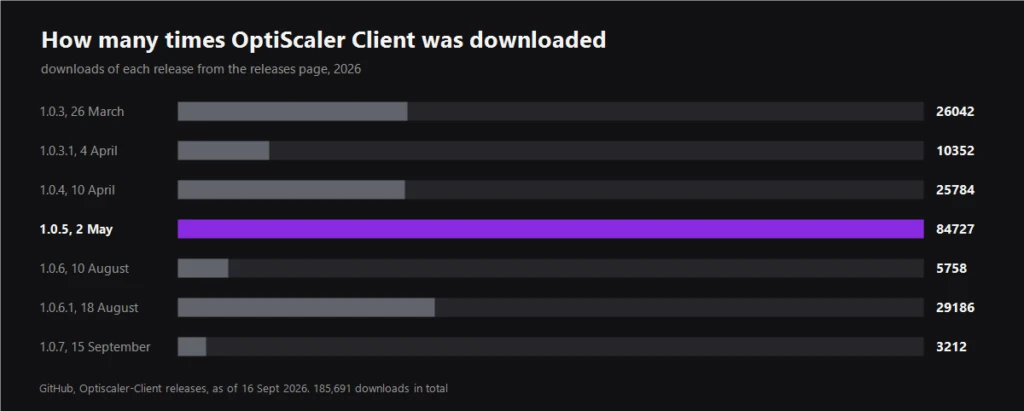
That leads to a practical rule. If something breaks after installing through Client, first test the same game with OptiScaler installed by hand. If the problem stays, it is an OptiScaler question. If it goes away, report it in the Client repository's issues, not to the OptiScaler team.
Where the program downloads files from
The Client description says all downloads come from official sources. We opened the program's configuration file, and the picture is a little more complicated. Some files really do come from the original pages, and some come from mirrors set up by the Client author himself. The mirrors are labelled unofficial, but you should know about them.
- Stable OptiScaler versions. The official optiscaler/OptiScaler repository.
- Nightly builds. The official optiscaler/OptiScaler-nightly, supported since 1.0.7.
- OptiScaler betas. The Optiscaler-Client/OptiScaler-Betas mirror, which holds, for example, 0.9.5-pre4 from 5 September.
- OptiPatcher and Fakenvapi. The OptiScaler team's official repositories.
- Nukem's dlssg-to-fsr3. The original Nukem9 repository.
- FSR 4 libraries. Mirrors run by the Client author: OptiScaler-Extras for INT8, from 4.0.2b to 4.1.1b, and Optiscaler-Extras-FP8 for FP8.
- DLSS Enabler. The Optiscaler-Client/OptiScaler-DlssEnabler mirror, because official builds are only on Nexus Mods.
- Streamline. The official NVIDIA-RTX/Streamline repository.
We saw no sign of anything harmful in the mirrors, and they are publicly visible on GitHub. But it is a real difference from a manual install worth understanding: by trusting Client, you also trust whatever the author puts in his mirrors.
Where to download it and how to avoid fakes
The only correct source is the Releases page of the Optiscaler-Client/Optiscaler-Client repository on GitHub. This is not a formality. A GitHub search on 16 September returns more than a dozen repositories with names like optiscaler-client, optiscaler-client-fsr4 or Optiscaler-Client-V4-Pro-2026, and many of them look like typical lures.
- The version number is wrong. The real Client is on 1.0.x. If you are offered 3.6 beta or V4 Pro, it is not the real thing.
- The archive sits inside the code. In one clone the link points to a zip inside the Views folder instead of the Releases page. That is not how software is distributed.
- A description made of keywords. "optiscaler client download fps booster windows 11 steam deck" strung together is written for search engines, not people.
- Created years ago, updated today. Or it contains nothing but a README and a licence, with no code at all.
- Third-party sites. Softonic pages and sites with "optiscaler" in the domain have nothing to do with the author. The OptiScaler team has separately warned about fake websites.
What the real 1.0.7 release contains: win-x64.zip for Windows, tar.gz and zip for Linux x64 and ARM64, an AppImage and a flatpak. Arch Linux has the community-maintained optiscaler-client-bin package in the AUR, and the repository ships a flake.nix for NixOS.
Installation and first launch
- Step 1. Download the archive for your system from the Releases page.
- Step 2. Extract it into any folder. There is no installer, the program is portable and self-contained, so you do not need to install .NET separately.
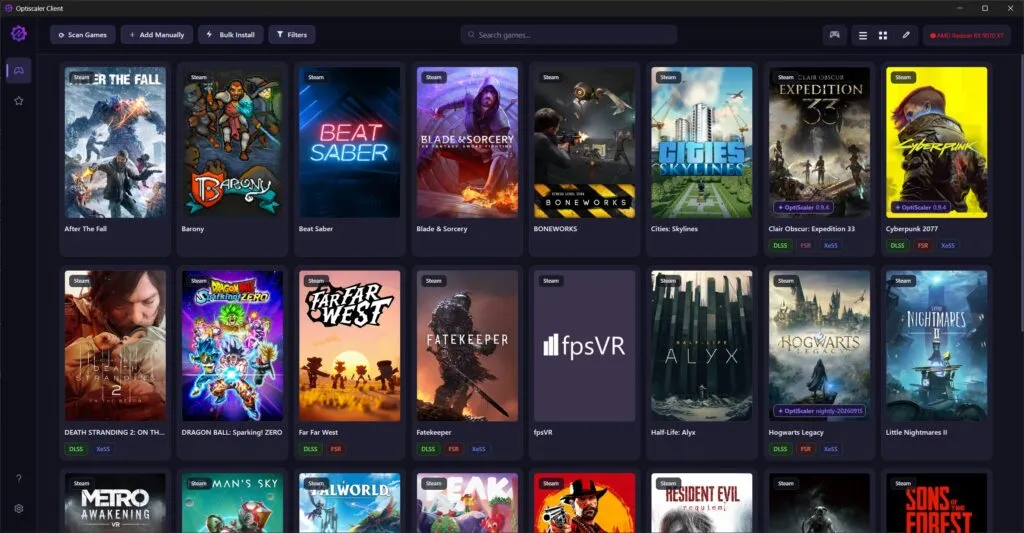
- Step 3. Run OptiscalerClient.exe. On first launch a welcome screen shows tips for your system.
- Step 4. Click Scan Games. A window opens where you choose which launchers and drives to scan.
If your antivirus complains. The program is not digitally signed and it downloads zip and dll files from GitHub, which some antivirus heuristics react to. The author names a specific false positive from Zillya, labelled Downloader.MLoki.Win64.10. Before adding an exception, make sure the file really came from the Releases page of the genuine repository, and check it on VirusTotal if you like. If the archive came from anywhere else, do not add any exceptions.
Where the program looks for games. On Windows it scans Steam, Epic Games, GOG, EA, Ubisoft, Battle.net, Heroic and the Xbox or Microsoft Store in parallel. On Linux, only Steam and Heroic are scanned automatically. You can add any folder as a custom source, and add a launcher-free game through Add Manually by pointing at its exe. Wallpaper Engine, SteamVR, Proton and the Steam Linux Runtime are excluded by default.
Scanning has three modes: Scan All shows everything, Hide Non-Upscalers hides games where no upscaler libraries were found, and Strict Scan keeps only games with such DLLs. The game covers get badges for detected technologies: DLSS, FSR, XeSS, DLSS Frame Generation. The top right corner shows the detected graphics card, and many install decisions depend on it.
How to install OptiScaler into a game
There are four ways, from the quickest to the most detailed.
- Quick Install. A button right on the game card. It installs OptiScaler with your default settings and downloads anything missing. Pressing it again uninstalls.
- Manage and Auto Install. The game window, where you choose the OptiScaler version, injection method, components and profile. The program finds the right folder itself, including Unreal Engine 5 games with a Phoenix\Binaries\Win64 layout.
- Manual Install. If the game has an unusual structure, you point at the exe yourself.
- Bulk Install. Install into several games at once, with a launcher filter and your choice of components and profile.
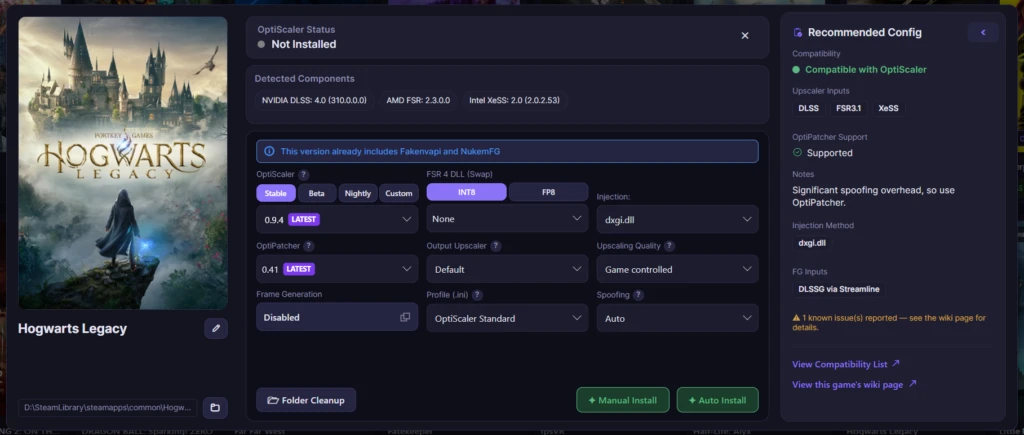
What you can set in the Manage window.
- OptiScaler version. Stable, Beta and Custom tabs, with nightly builds switched on in settings. Custom lets you drop in your own build of OptiScaler, Fakenvapi or the Nukem mod.
- Injection method. The name OptiScaler uses inside the game: dxgi.dll, winmm.dll, d3d12.dll, dbghelp.dll, version.dll, wininet.dll or winhttp.dll. For many games the program picks one based on compatibility list data.
- Fakenvapi. Needed on AMD and Intel so the game sees the NVIDIA features it expects. OptiScaler 0.9 and newer already bundle it.
- NukemFG. The mod that swaps DLSS Frame Generation for FSR 3. It only works in games with built-in DLSS Frame Generation. 1.0.6.1 fixed a bug that switched it on where there is none.
- OptiPatcher. The OptiScaler team's plugin that unlocks DLSS in supported games without GPU spoofing. Client sets LoadAsiPlugins=true for you.
- Output Upscaler. Which upscaler actually runs: Default, FSR 2, FSR 3, FSR 4, XeSS or DLSS.
- Upscaling Quality. The input resolution: game controlled, Native AA, Ultra Quality, Quality, Balanced, Performance, Ultra Performance or a custom factor.
- Spoofing. GPU spoofing, Auto by default, which you can force on or off per game.
After installing, launch the game as usual. The OptiScaler menu opens with the same Insert key as a manual install, and you can tune upscaling on the fly there.
Frame generation and Multi Frame Generation
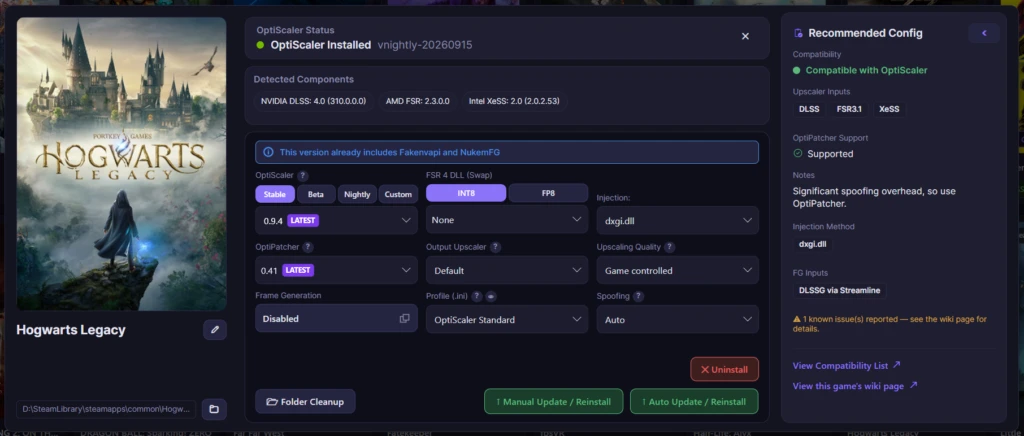
Version 1.0.7 moved frame generation straight into the Manage window. There is a simple mode: pick the technology and multiplier, and the program sets the path, replaces nvngx and downloads Streamline for you. DLSS-G output offers multipliers from x3 to x6. There is also an advanced mode where you choose the path, such as DLSS-G via Streamline or OptiFG, the nvngx file and the Streamline version by hand.
- Streamline downloads itself. With a multiplier above x2 or when DLSS Enabler is used.
- DLSS Enabler. Needed for Multi Frame Generation. It cannot be redistributed directly, so Client fetches versions from a mirror, and if the mirror falls behind you can import your own.
- Anti-cheat. If the game folder contains start_protected_game.exe, EasyAntiCheat_EOS.exe, BEService.exe or BEClient_x64.dll, the program disables frame generation injection with a safety note.
Generated frames add smoothness but not responsiveness: input latency grows with the multiplier. At x4 and above it is more noticeable in fast games, so start at x2 and go higher only if the image and controls still feel right.
Swapping FSR 4 without installing OptiScaler
One of the most useful features, and one a manual install does not have. If a game already supports FSR 4, Client can simply replace its FSR 4 libraries with another version without installing OptiScaler at all. Set the OptiScaler selector to None and choose the version in the FSR 4 section.
- INT8 and FP8. FP8 is the model for Radeon RX 9000. INT8 is for other cards, and AMD officially supports it on desktop RX 7000.
- File selection. For multi-file FSR 4 releases you can tick exactly what to replace: upscaler, loader, radiance cache, frame generation, denoiser.
- Your own versions. You can import custom DLLs in both variants.
- Automatic choice. Since 1.0.5 the program picks INT8 by itself on non-RDNA 4 Radeons.
RX 6000 and RDNA 2 APU owners. In the 1.0.6.1 notes the Client author writes that FSR 4 INT8 version 4.1.1 may cause black screens, ghosting and stutter on these cards. It is an AMD driver regression, not a bug in the program, and there is no fix date. Pick 4.0.2c, which is what the OptiScaler authors recommend too. More on FSR 4 on older cards in our article FSR 4.1.1b on older AMD and NVIDIA cards.
Profiles: settings without editing ini files
A profile in Client is a regular .ini file with OptiScaler settings, applied at install time. The Profiles tab on the left lets you create, clone, edit, import and export these files.
- Easy Mode. Toggles for common settings: default upscaler, hotkeys, overlays.
- Advanced Mode. Every section of OptiScaler.ini, with search and navigation.
- Default profile. OptiScaler Standard ships out of the box. You can set your own in Settings, and it is applied by Quick Install and Bulk Install.
- Per-game recommendations. The Manage window has a sidebar with settings the program pulls from the official OptiScaler compatibility list and the Luma list for Unreal Engine.
- No reinstall needed. If you change a single simple setting, Client offers to update just the config instead of reinstalling everything.
Uninstalling, backups and where files live
This is where Client beats a manual install. Before installing, it copies the game files that will be replaced into a separate store outside the game folder and writes a manifest: which files were installed, which existed before, with SHA256 checksums before and after. On uninstall, the originals are put back according to that manifest.
- Uninstall. Press Quick Install on a game card where OptiScaler is already installed, or open Manage and click Uninstall.
- Program data on Windows. %AppData%\OptiscalerClient, with backups in %AppData%\OptiscalerClient\Backups, one subfolder per game.
- Data on Linux. ~/.config/OptiscalerClient or the folder from XDG_CONFIG_HOME.
- If an install is broken. Manage has Clean Folder, which removes leftovers from earlier installs. The program also detects a corrupt install on its own and suggests a cleanup.
- Download cache. Settings show how much space the downloaded versions of OptiScaler, FSR 4, Fakenvapi, NukemFG, OptiPatcher and RenoDX take, and you can delete what you do not need. Clear Application Cache wipes everything: game list, covers, settings.
One important rule. Do not delete the program folder or its data while games still have OptiScaler installed through Client: the backups go with them. Uninstall OptiScaler from your games with the button first, then remove the program. If the backups are lost anyway, verifying game files in Steam, Epic or another launcher helps, and the file list for manual removal is in our OptiScaler guide.
Linux, Steam Deck and gamepads
Linux support arrived in version 1.0.5 on 2 May 2026, tested on Ubuntu, CachyOS and Bazzite. The program detects the GPU through sysfs and does not mistake Proton or the Steam Linux Runtime for games.
- Auto scan. Only Steam and Heroic, which covers Epic and GOG games through Heroic. Everything else is added by hand.
- Manual add. You still point at the game's exe, as in the Windows version.
- DLL override. The OptiScaler wiki tells Linux users to add a WINEDLLOVERRIDES line with the DLL name to the game's Steam launch options, for example WINEDLLOVERRIDES="dxgi=n,b" %command%. The Client author notes in the code that a plain install does not need it, and the program only shows a ready-to-copy line after installing the Neural Rendering mod. If the Insert menu does not appear in game, add the line yourself, it is the first thing to check.
- Gamepad. Since 1.0.6 there is beta gamepad control on Windows and Linux, with the layout in the Help section. 1.0.7 fixed the game settings window opening off-centre and partly off-screen on handhelds.
Experimental features
Settings, Experimental section: version 1.0.7 added two integrations, and both are worth enabling only deliberately.
- RenoDX. The program fetches the RenoDX addon for a specific game, which runs through ReShade and improves HDR.
- Nvidia Neural Rendering Mod for AMD. An unofficial mod by danielblnc that runs DLSS neural rendering on AMD graphics cards, optionally with MatheusGViana's wrapper so it can run alongside OptiScaler.
A separate warning about the second one. danielblnc's installer is unsigned and Windows Defender sometimes removes it. So Client may offer to add the game folder and the cache folder to Defender exclusions. The code shows this happens only with your consent and through the standard UAC administrator prompt, which you can decline. But an antivirus exclusion is an exclusion: anything that later ends up in those folders will not be scanned by Defender. If you are not sure you need this mod, say no.
Common problems and fixes
- The program will not start on an older Windows 10. 1.0.7 added a software rendering fallback for startup crashes. Update.
- Download errors and 403 from GitHub. GitHub limits unauthenticated requests. Since 1.0.5 the program makes fewer calls, but frequent scans can still hit the limit. Wait an hour.
- Work network or proxy. Client understands the system proxy, the HTTP_PROXY and HTTPS_PROXY variables, and a proxy set in Settings, including with a login.
- The game stopped launching after install. Uninstall OptiScaler through Client, press Clean Folder if needed, verify files in the launcher. Then try another injection method, such as winmm.dll instead of dxgi.dll.
- The game updated and OptiScaler vanished or it crashes. Patches overwrite files in the game folder. Uninstall and reinstall through Client.
- Profile changes were not saved. 1.0.7 fixed a bug that discarded profile changes on exit.
- No DLSS spoofing for some game. As of 16 September there is an open issue about exactly this in the repository, so in some games DLSS spoofing through Client does not yet work the way hand-tuned ini settings do.
Two rules that matter more than anything else
Do not put OptiScaler into online games. Client warns about the risks and disables frame generation when it finds anti-cheat, but installing still injects a library into the game. Anti-cheat does not care whether you did it by hand or through a nice window, the reaction is the same, up to a ban.
Download only from GitHub. Optiscaler-Client/Optiscaler-Client for the program, optiscaler/OptiScaler for the mod itself. A program that writes files into your game folders and can ask for administrator rights is exactly what attackers like to fake.
Follow those rules and OptiScaler Client turns ten minutes of fiddling per game into a couple of clicks, and it can genuinely roll everything back. For a single game you can live without it. For a library of twenty games and experiments with FSR 4 versions, it is worth it.
Sources
The feature list, requirements, install and uninstall methods, data paths, the antivirus false positive notice and the unofficial status disclaimer come from the README of the Optiscaler-Client/Optiscaler-Client repository on GitHub. Dates and contents of versions 1.0.0 to 1.0.7, including Linux in 1.0.5, gamepad and Heroic in 1.0.6, fixes and the known FSR 4.1.1 issue on RDNA 2 in 1.0.6.1, and frame generation, FSR 4 swapping and experimental features in 1.0.7, come from the release notes there. Download sources come from the program's config.json file, and the mirror descriptions from the OptiScaler-Betas, OptiScaler-Extras, Optiscaler-Extras-FP8 and OptiScaler-DlssEnabler repositories themselves. Backup storage and the SHA256 manifest are described from BackupStoreService.cs, AppPaths.cs and InstallationManifest.cs, disabling frame generation on anti-cheat from FrameGenerationConfigurationService.cs, Defender exclusions from WindowsDefenderExclusionHelper.cs, and the Wine override prompt from ManageGameWindow.axaml.cs. Star, download and contributor counts come from the GitHub API as of 16 September 2026, open issues from the repository's issue tracker. The OptiScaler team's warning about no official manager and fake sites comes from the optiscaler/OptiScaler README, the FSR 4.0.2c recommendation for RDNA 2 from the OptiScaler 0.9.4 notes, and the WINEDLLOVERRIDES line from the OptiScaler wiki. Signs of fake repositories are based on a GitHub search on 16 September 2026. Linux support is also covered by GamingOnLinux on 25 May 2026. Interface screenshots come from the program's README, and the download chart was built by us from GitHub data.