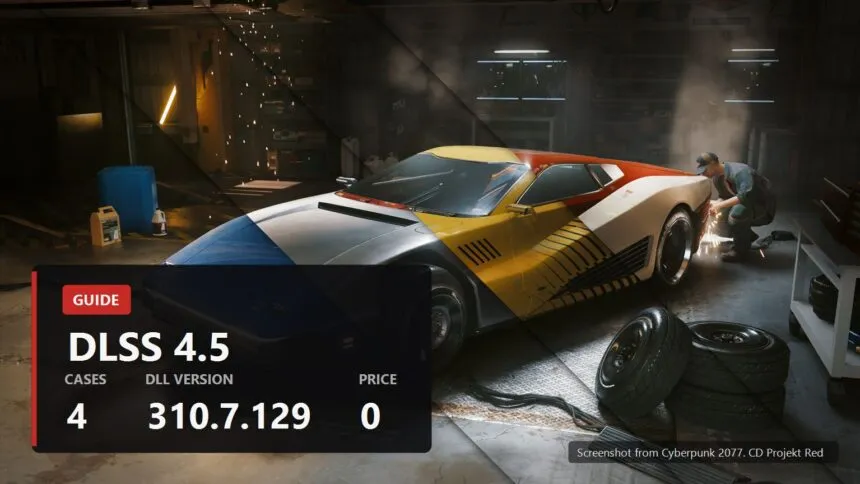
"How do I get DLSS in this game" is really four different questions, and people mix them up constantly. One person already has DLSS, it is just an old build that smears. Another only has FSR in the menu. A third is playing something from 2015 that has nothing at all. The answers are nothing alike: two minutes in the NVIDIA app for one, dropping a file into a folder by hand for another, and in one case there is no answer.
- Work out which case you are in first
- Case one: the game has DLSS. It is all done in the NVIDIA app
- Case two: DLSS is there but the app cannot see the game. Swap the file
- Case three: the game only has FSR or XeSS. This is where OptiScaler comes in
- Where you must not do any of this
- How to confirm it is actually running
- If it did not work
Below are all the routes that actually work, what each one needs, where each one breaks, and where using it will get you banned. Start by working out which case you are in, or you will spend half a day on the one that was never going to help.
Work out which case you are in first
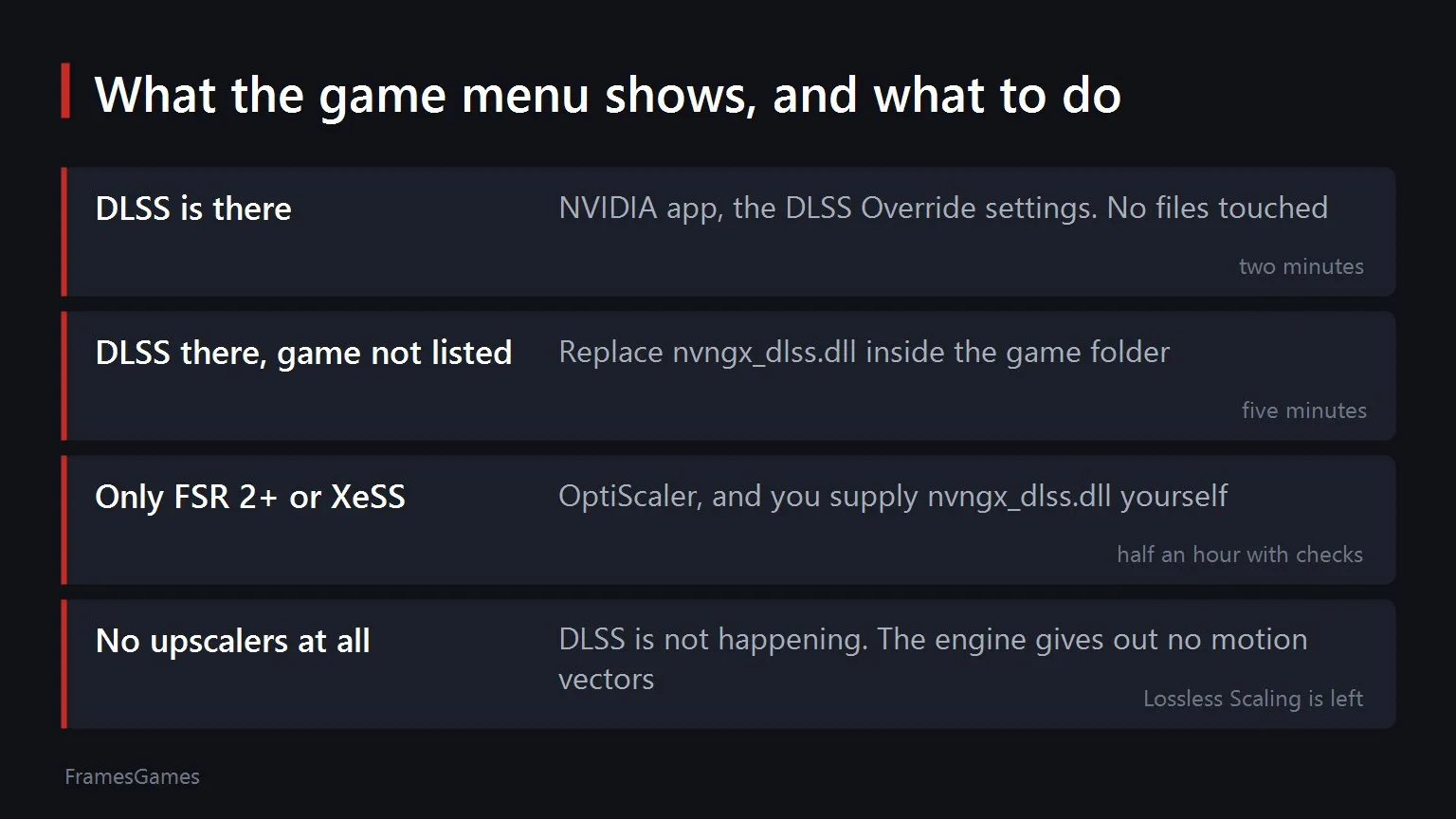
Open the graphics settings in the game and look at what is in the upscaler list. Everything else follows from that.
| What the game menu shows | What to do | How long it takes |
|---|---|---|
| DLSS is there | NVIDIA app, the DLSS Override settings | Two minutes, no files touched |
| DLSS is there, app does not see the game | Replace nvngx_dlss.dll in the game folder | Five minutes |
| Only FSR 2+ or XeSS | OptiScaler, plus your own nvngx_dlss.dll | Half an hour with checks |
| No upscalers at all | DLSS is not happening. Lossless Scaling is the fallback | Different technology |
That last row is the "almost" in the title. DLSS needs motion vectors and a depth buffer from the engine. If the game hands those to nobody, there is nowhere to get them, and no tool works around that. Everything offered in that situation runs off the finished image and has nothing to do with DLSS.
Case one: the game has DLSS. It is all done in the NVIDIA app
This is the common case and the easy one. If a game supports DLSS 2.0 or newer, the NVIDIA app will swap in the current model for you without a single file being touched. More than four hundred games are covered this way right now.
- Open the NVIDIA app and go to the Graphics tab.
- Pick your game from the list. To cover everything at once, use Global Settings at the top.
- Scroll down to the three entries that start with DLSS Override.
- Set Model Presets to Recommended and hit Apply.
For most people that is the job finished. Recommended is not a placeholder either, it is a specific mapping from NVIDIA: preset M on Performance mode, preset L on Ultra Performance, preset K on everything else.
If you want to drive it yourself, switch Model Presets to Custom. Whatever you pick then applies to every DLSS mode.
- Preset K. The first generation transformer, the one everyone calls DLSS 4. A sane pick on RTX 20 and 30, where the newer models cost more.
- Preset M. Second generation transformer from DLSS 4.5, tuned for heavy upscaling, which means Performance mode.
- Preset L. Also second generation, aimed at the extreme upscaling ratios of Ultra Performance.
- Preset B under Frame Generation. A separate line in the same menu. It handles generated frames, not upscaling.
A word about older cards, and it needs to be an honest one. Models M and L run on every RTX going back to the 20 series, but on RTX 20 and 30 they cost noticeably more frames: those chips have no hardware FP8, so the maths is done the long way. On a 2060 you are often better off staying on preset K and keeping the frames.
The third entry, Super Resolution Mode, earns its place on its own: it turns on DLAA in games where the developer never exposed it. DLAA is the same algorithm without the resolution drop, pure anti-aliasing. If you have frames to spare it is the best thing one checkbox can do for an image.
What you need going in: NVIDIA app 11.0.6 or newer and the Game Ready 591.74 WHQL driver, which is what models M and L arrived with on 5 January 2026. The second generation Ray Reconstruction that NVIDIA opened up on 25 August lives in the same menu behind an Early Access tick, and we went through it separately.
Case two: DLSS is there but the app cannot see the game. Swap the file
The NVIDIA app does not know every game in existence. Odd launchers, early access builds, portable copies: in all of those the game may simply not show up in the Graphics list. That leaves the old method, replacing the library in the game folder.
The file is called nvngx_dlss.dll and it sits next to the game executable or in an engine subfolder. The current build is 310.7.129. Frame generation has its own library, nvngx_dlssg.dll, currently 310.7.128. Both live on TechPowerUp, where the date of each build is visible.
You do not have to do it by hand. DLSS Swapper is free, finds your installed games itself, shows the library version in each one and swaps it in two clicks. The current release is 1.2.6.1 from 26 August 2026, which added preset F for Ray Reconstruction. Its real virtue is the backup it keeps: rolling back is the same two clicks.
One thing that generates a lot of "it stopped working" posts. A game update drops its own copy of the library over yours, and verifying game files in Steam does exactly the same. That is not a fault, that is the design. After a big patch you redo the swap, and the reason DLSS Swapper is worth having is that redoing it is cheap.
Case three: the game only has FSR or XeSS. This is where OptiScaler comes in
Here the actual work starts. OptiScaler is a shim: it intercepts the game's calls to its own upscaler and hands them to a different one. The game thinks it is rendering through FSR while DLSS is the thing assembling the frame.
It has exactly one limitation and it decides everything. The game must already support DLSS 2+, FSR 2+ or XeSS. OptiScaler cannot conjure an upscaler out of nothing, because there would be nothing to intercept.
And one step that other guides keep losing. If the game never had DLSS, there is no DLSS library in its folder either. You put nvngx_dlss.dll there yourself, next to OptiScaler, taken from the same TechPowerUp page. Skip it and the overlay simply has no DLSS line, and people spend an hour convinced they installed something wrong.
- Where to extract it. The folder holding the main game executable. For Unreal Engine games that is not the root but something like
Game\Project\Binaries\Win64, and theEnginefolder is to be ignored. Examples from the project's own docs:Cyberpunk 2077\bin\x64,The Witcher 3\bin\x64_dx12,Expedition 33\Sandfall\Binaries\Win64. - How to install. Run
setup.batfrom the archive and it handles the renaming. If the script fails, renameOptiScaler.dllyourself:dxgi.dllworks most often, after that comewinmm.dll,d3d12.dll,dbghelp.dll,version.dll,wininet.dll,winhttp.dll. - How to open the settings. Press
Insertin game. If the overlay flashes and vanishes, tryAlt + Insert, a known workaround for non-standard keyboard layouts. Frame generation toggles withEnd. - What to pick in the overlay. The input is whatever is selected in the game's own settings, the output is what you choose in OptiScaler. For this job the output goes to DLSS.
- How to remove it. Run
Remove OptiScaler.bat. The full manual removal and the "dll not found" error are covered in our separate piece on it.
Unreal Engine needs a caveat. The XeSS plugin in that engine does not provide depth, so replacing in-game XeSS breaks the other upscalers, and the authors say plainly that XeSS is the only input that reliably works there. FSR inputs in UE games often need ini edits, and at that point you are troubleshooting one specific game rather than the tool.
We DO NOT HAVE an official website. We DON'T have an official manager app. Only LEGIT places are this Github, our Discord server and Nitec's NexusMods page. OptiScaler is FREE, any kind of monetary requirements are scams.
That warning sits at the very top of the project's documentation and it is not decoration. Search for "optiscaler download" and you get several sites dressed up as official, complete with a Download button and their own "manager". Get it from the releases page on GitHub. The current stable build is 0.9.4 from 18 July 2026, and since 0.9 the archive already bundles Fakenvapi and Nukem's mod, so there is nothing extra to hunt down.
Where you must not do any of this
The shortest and most important part of this guide. In the OptiScaler docs this is the only thing formatted as a warning: do not use it with online games, it may trigger anti-cheat and get you banned.
The mechanism is simple and not up for debate. Kernel level anti-cheats like Easy Anti-Cheat, BattlEye and Vanguard watch which libraries the game process loads. A dxgi.dll that did not ship with the game is not an upscaler to them, it is foreign code inside a protected process. Nobody is going to work out that you only wanted a cleaner image, and appeals over injection bans tend to be short.
The practical rule: in a multiplayer game, use the NVIDIA app and nothing else. It puts nothing in the game folder and works through the driver, so there is nothing for an anti-cheat to catch. Swapping nvngx_dlss.dll sits somewhere in between, since the file is legitimate and signed, but it is still replacing a game file and I would not do it in a competitive shooter.
How to confirm it is actually running
"It looks sharper, I think" is worth nothing. There are two ways to look at facts instead.
The easy one: press Alt + Z in game, open Statistics, and under Statistics View select DLSS. A panel appears in the corner showing the version and the active presets, including anything you set through Override.
The thorough one, and the only one that works for OptiScaler and swapped libraries: turn on NVIDIA's own indicator through the registry. Under HKEY_LOCAL_MACHINE\SOFTWARE\NVIDIA Corporation\Global\NGXCore create a DWORD called ShowDlssIndicator with a decimal value of 1024. A line appears in the bottom left of the screen with the library version, the mode, the render resolution, the output resolution and the preset letter.
The number to read is the render resolution. Pick Quality at 4K and it should say 2560x1440. If it says 3840x2160, the upscaler is not running, whatever the game menu claims.
If it did not work
- The game is missing from the NVIDIA app list. The Graphics tab has a rescan button and lets you add a folder manually. If that fails you are in case two, go and swap the library.
- The OptiScaler overlay will not open. Try
Alt + Insertfirst. If it opens but ignores the mouse, as in Dying Light 2, use the arrow keys, Tab and Space. - The game crashes on launch. Rename the OptiScaler library to a different name from the list. If it specifically crashes when DLSS is selected, the authors suggest
d3d12.dll. - There is no DLSS line in the overlay. You did not put
nvngx_dlss.dllin the folder. That is a missed step, not a broken install. - The frame counter broke, or the game will not start with MSI Afterburner running. In RTSS settings turn on Use MS Detours API hooking. Known conflict, fixed by that one checkbox.
- Everything vanished after a game update. The patch overwrote the files. Redo the install, nothing bad has happened.
- The image went soft or started trailing. Change the preset: in the NVIDIA app the rollback is instant, in OptiScaler presets live in the same
Insertoverlay.
The short version of the priorities: try the NVIDIA app first, because it is free, reversible and safe. Reach for OptiScaler only when the game genuinely has no DLSS in its menu, and only in a single player game. And a game with no upscaler at all cannot be given DLSS by anyone, so if someone promises otherwise they are selling you something else under a name you recognise.
Sources
The steps inside the NVIDIA app, the names of the DLSS Override entries, the preset K, L and M mapping, the DLSS 2.0 support requirement and the note about RTX 20 and 30 lacking hardware FP8: NVIDIA's own articles on the DLSS 4.5 Super Resolution release and on the Game Ready 591.74 WHQL driver shipping alongside NVIDIA app 11.0.6 on 5 January 2026. Second generation Ray Reconstruction and preset F: NVIDIA's announcement of 25 August 2026. Library versions 310.7.129 for Super Resolution and 310.7.128 for frame generation: the TechPowerUp download pages. DLSS Swapper 1.2.6.1 from 26 August 2026: the project's releases page on GitHub. Everything about OptiScaler, including the supported filenames, the Unreal Engine paths, the requirement to supply nvngx_dlss.dll manually, the overlay keys, the RTSS advice and the fake website warning: the project's official README and wiki on GitHub, stable build 0.9.4 from 18 July 2026. The ShowDlssIndicator registry value is documented in NVIDIA's NGX material and used by community tools.