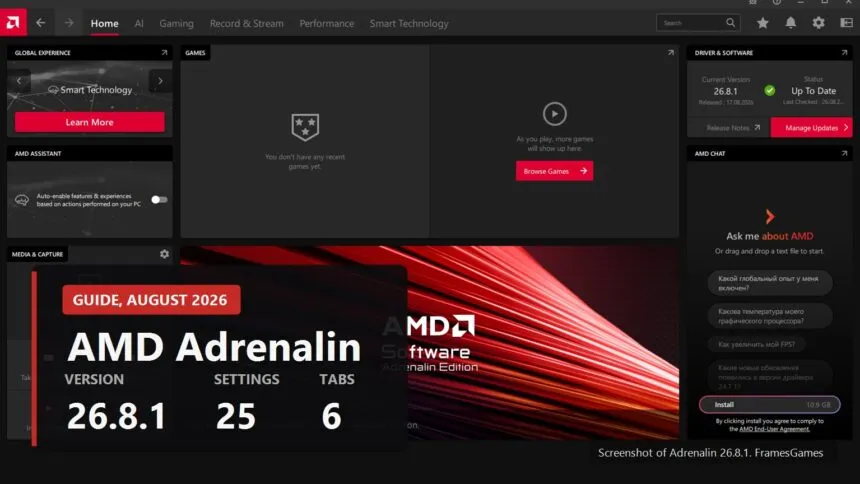
Adrenalin has about forty switches, and the problem is not the number. It is that the advice about them gets copied from one site to the next. Half the guides out there describe an interface from three years ago, where HYPR-RX lived on the home tab and FSR was called version four. Neither is true in 26.8.1.
- First find out what you actually have
- The home tab, and what is not on it
- Presets: one button instead of ten
- FSR, frame generation and three lookalike toggles
- Three frame limiters, and why not to mix them up
- Sync and the display
- Tuning: quieter, not faster
- Smart Technology
- The bottom of the list, where almost nothing is needed
- How to tell whether a setting actually did anything
- What you can safely skip installing
- If it got worse
- The short version
What follows covers every setting: what it does, which problem it solves, which hardware it even appears on, and when to leave it alone. Every screenshot was taken in Adrenalin 26.8.1, released 17 August 2026, on a Radeon RX 9070 XT with a Ryzen 7 5700X3D. On a card from a different generation some of these will be missing, and that is normal. The first section explains why.
First find out what you actually have
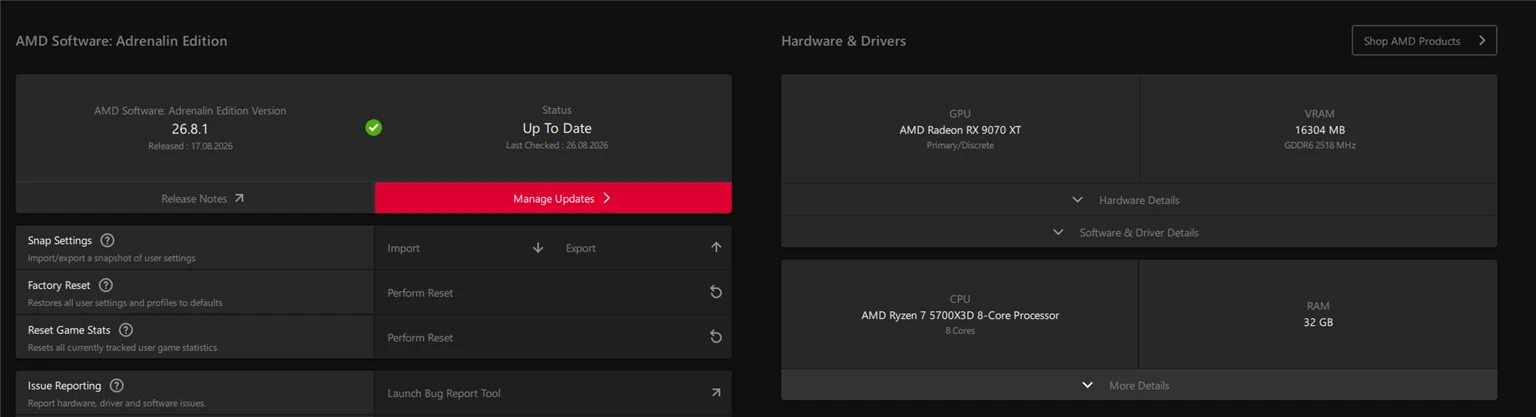
Cog icon top right, then System. Driver version, release date and all your hardware in one place: card model, video memory size and speed, processor, system memory.
This page answers the most common Adrenalin question there is: why do I not have the setting everyone writes about. Nine times out of ten the answer is not the driver, it is the hardware. Features are tied to generations:
| Feature | Hardware floor |
|---|---|
| Radeon Anti-Lag | Radeon RX 400 and newer, Ryzen 2000 and newer |
| Radeon Boost | Radeon RX 400 and newer, the VRS variant from RX 6000 |
| AMD Fluid Motion Frames | Radeon RX 6000 and newer |
| HYPR-RX | Radeon RX 7000 and newer, or Ryzen 7040 with RDNA 3 graphics |
| FSR Upscaling and FSR Frame Generation | Radeon RX 9000 |
A live example from this exact machine: AMD SmartAccess Video reads "Unsupported Feature". The driver is fine. The 5700X3D is an AM4 part with no integrated graphics, and that feature needs integrated graphics. Nothing to fix.
The home tab, and what is not on it
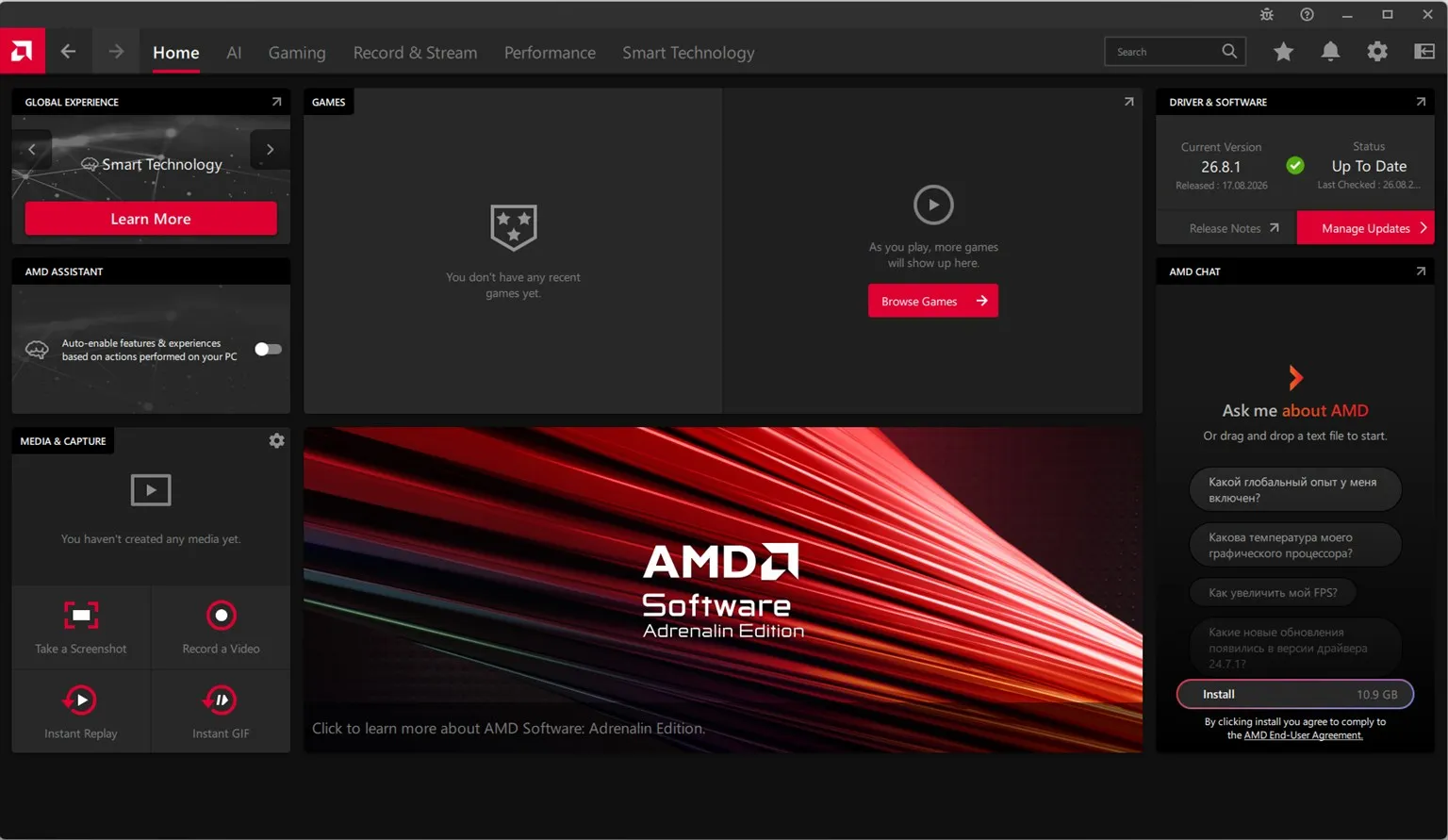
Top right shows the version and update status, with a link to the release notes. More useful than it looks: the notes are where AMD lists known issues honestly, so if a game started crashing right after a driver update, look there before you start reinstalling Windows.
The AMD Assistant toggle in the left column lets the driver enable features on its own based on what you do. Mine stays off. Unpredictable driver behaviour is impossible to diagnose afterwards.
What is not on the home tab is HYPR-RX. If you find a guide that says "click HYPR-RX on the home screen", it was written before 2024. The presets moved. Where to, in the next section.
Presets: one button instead of ten
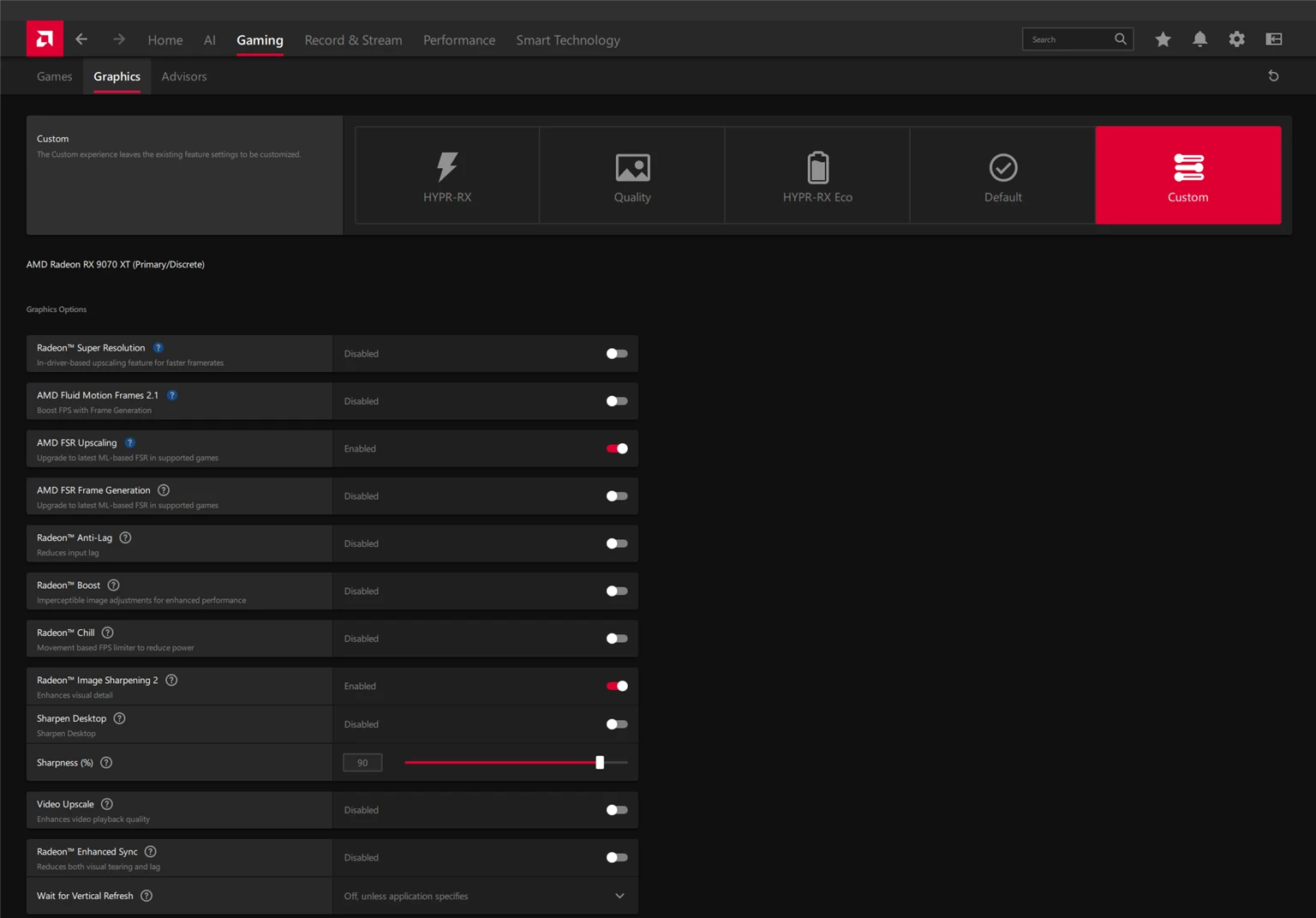
Gaming, then Graphics. A row of five tiles sits above the settings list, and it is the first thing you see on that tab.
- HYPR-RX. Switches on Radeon Super Resolution, Anti-Lag, Boost and Fluid Motion Frames 2.1 in one go. Needs RX 7000 or newer.
- Quality. Tips everything towards image quality rather than frames.
- HYPR-RX Eco. The same set with the emphasis on power saving, and Radeon Chill joins in. For a laptop, or for a quiet desktop, this is the best of the ready-made options.
- Default. Everything back to factory.
- Custom. Does not touch your current settings, it simply stops managing them.
There is a separate piece almost nobody knows about, called HYPR-Tune. In games on AMD's list the preset reaches past the driver and into the game itself: it turns on the built-in FSR at Quality, and if the game supports FSR 3 frame generation it uses that instead of AFMF. Anti-Lag 2 can be switched on there too. In games outside that list only the driver-side features work.
When to take HYPR-RX: when you have no time to fiddle and not enough frames. When not to: when you care about the picture, because Radeon Super Resolution stretches the whole frame including the interface and the text.
FSR, frame generation and three lookalike toggles
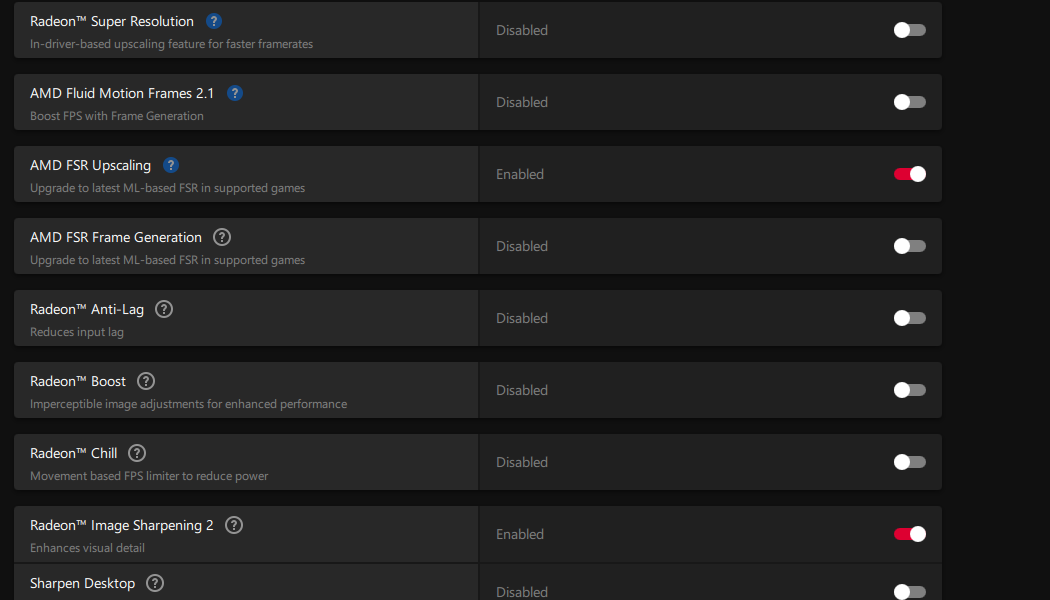
This is where people get lost, because four different things with similar names sit next to each other. One at a time.
The names changed. FSR 4 is no longer called four. It is FSR Upscaling now, and Redstone is what AMD calls the whole set: FSR Upscaling, FSR Frame Generation, FSR Ray Regeneration and FSR Radiance Caching. Some game menus still show the old name.
| Toggle | What it does | When to use it |
|---|---|---|
| Radeon Super Resolution | Stretches the finished frame from the driver, works in any game | When the game has no upscaler of its own at all |
| AMD FSR Upscaling | Swaps the library in games with FSR 3.1 or higher for the machine learning version | Almost always, if the card is RX 9000 |
| AMD FSR Frame Generation | The same but for frame generation, needs FSR 3.1.4 integration or higher | When frames are short and latency is acceptable |
| AMD Fluid Motion Frames 2.1 | Frame generation done by the driver, with no help from the game | When the game cannot generate frames at all |
The practical order goes like this. Start with whatever is built into the game, that is always cleaner. If the game carries FSR 3.1, switch on FSR Upscaling in the driver and you get the same picture running on a newer algorithm without touching a single in-game menu. If the game has no upscaler of its own, Radeon Super Resolution is what is left, but expect worse results, because it stretches an already assembled frame together with the interface.
One thing about frame generation matters more than the rest: it adds latency. AMD's own material recommends running Anti-Lag alongside it. In a slow game you will not notice. In a competitive shooter, leave it off.
Radeon Image Sharpening 2 sits on its own toggle with a sharpness slider. Any upscaler softens the picture a little and sharpening pays that back. The default 50 per cent is perfectly usable, above 70 you start to see noise creeping along edges. Sharpen Desktop next to it does the same for the desktop, and Video Upscale does it for video in the browser.
Three frame limiters, and why not to mix them up
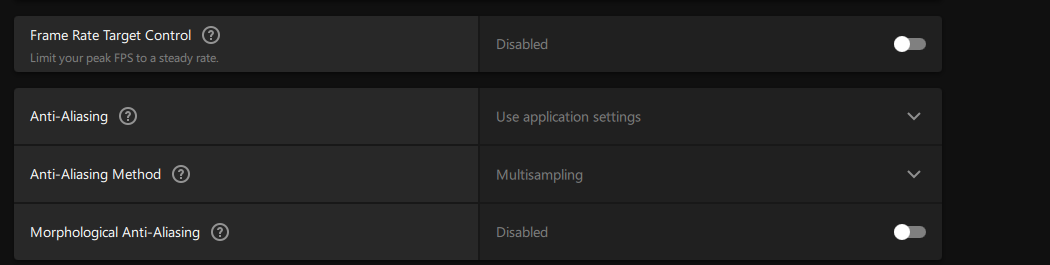
They share a job and behave differently, and choosing between them decides whether your machine is quiet.
| What | How it behaves | Who for |
|---|---|---|
| Radeon Chill | Holds a floor and a ceiling, drops frames while you stand still and lifts them when you move | Laptops, quiet desktops, slow games |
| Frame Rate Target Control | A plain ceiling, steady and predictable | Everyone else |
| The limiter inside the game | Usually the most honest one for latency | If it exists, use it |
Capping frames is the most underrated setting in the whole driver. It takes almost nothing away from how the game feels, and it takes tens of watts off the card, along with the fan noise and the heat inside the case. A sensible ceiling is your monitor's refresh rate, or exactly half of it.
Radeon Boost in the same list works the other way round: it drops resolution dynamically at the moment you swing the mouse quickly. Hard to notice, and it does add frames. Little harm in it, and no miracles either.
Sync and the display
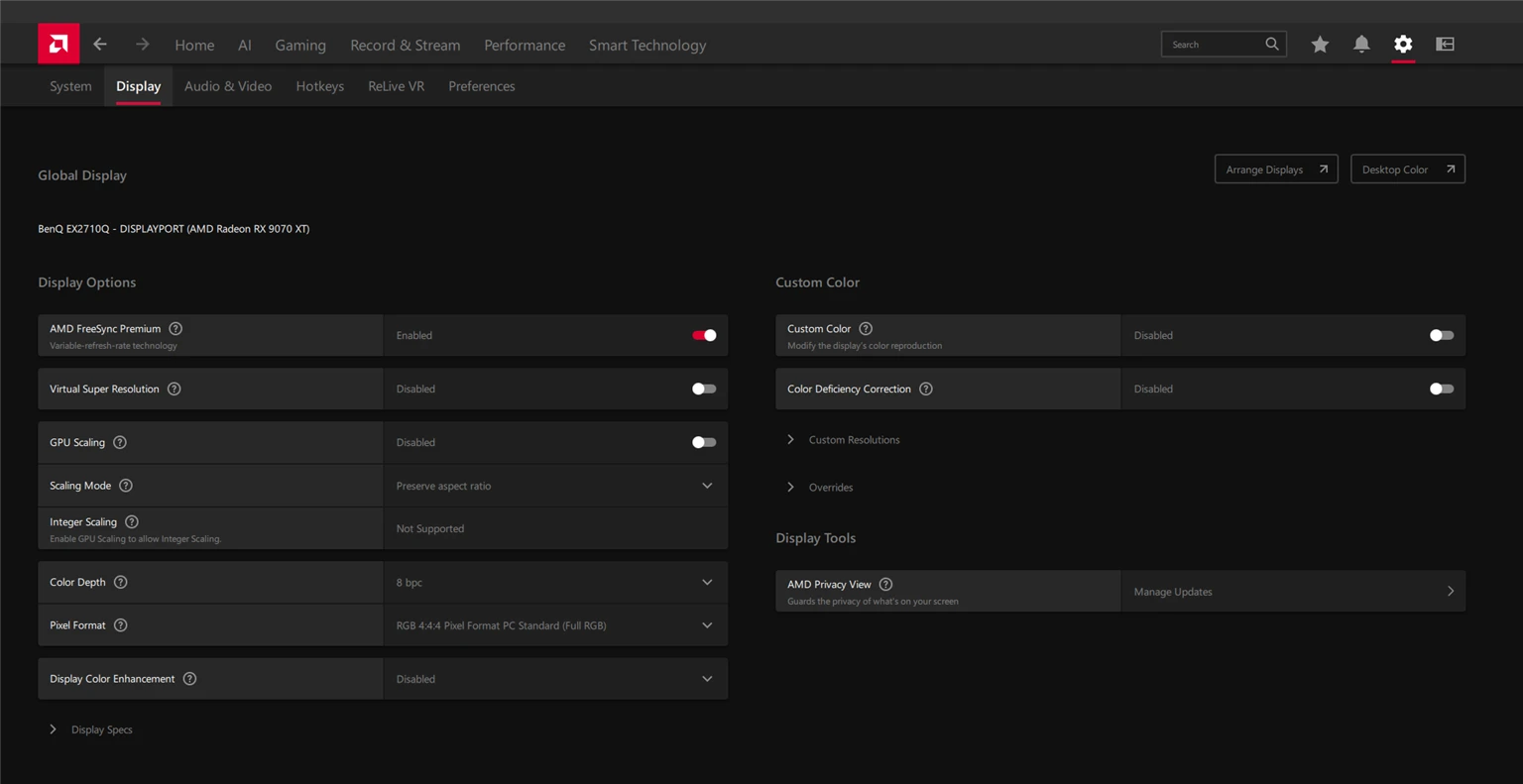
Cog, then Display. Monitor settings live apart from the game settings, which throws people.
- AMD FreeSync. On, if your monitor can do it. It matches the screen refresh to the game's frames, so tearing disappears without the latency plain vertical sync adds.
- Virtual Super Resolution. Lets you pick a resolution above your monitor's own and has the driver shrink it back. Expensive in frames, and excellent at killing jagged edges in old games with no decent anti-aliasing.
- GPU Scaling and Scaling Mode. What happens when a game runs below your native resolution: stretch it, keep the aspect ratio, or leave it centred.
- Integer Scaling. Multiplies each pixel by a whole number, for honest pixel art. On this machine it reads "Not Supported", and the hint beside it explains why: GPU Scaling has to be on first.
- Color Depth and Pixel Format. Only touch these if you know why. The wrong format gives you washed out or blown out colour, and this is where it gets fixed, not in the monitor's own menu.
On the gaming tab, Wait for Vertical Refresh and Radeon Enhanced Sync sit side by side. The first is driver-side control of vertical sync, and it is worth touching only when the game gives you no such setting. The second discards spare frames instead of waiting, which cuts latency but can judder below your monitor's refresh rate. With FreeSync on, you usually need neither.
Tuning: quieter, not faster
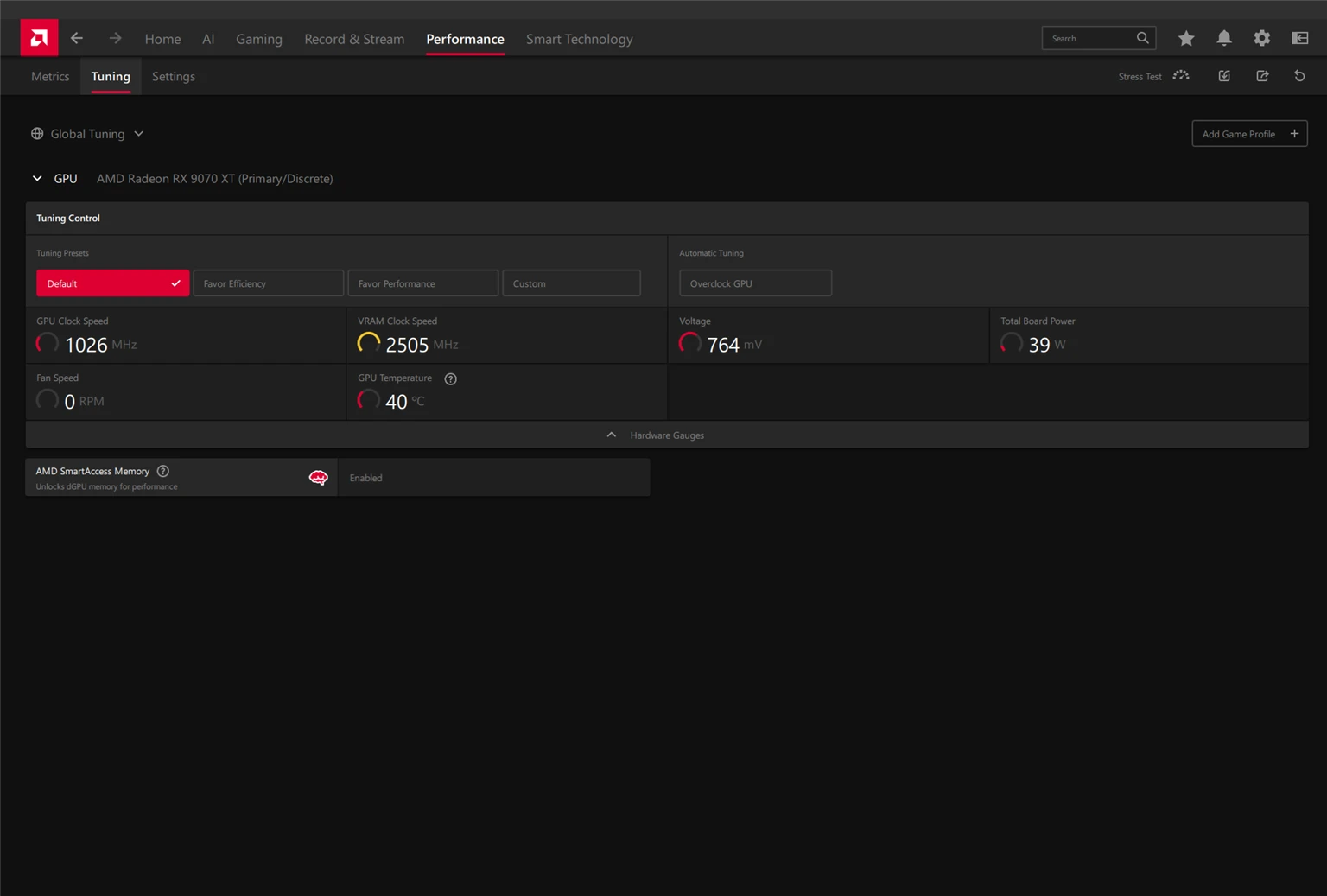
Performance, then Tuning. Four presets and a separate automatic overclock button.
Favor Efficiency lowers voltage and the power ceiling. For most people this is the best value in the driver: frames drop within the margin of error while the card runs noticeably cooler and quieter. Favor Performance does the opposite, trading watts and noise for a couple of per cent. Custom opens the voltage, clock and fan sliders by hand.
The Overclock GPU button on the right runs an automatic search. It works, but treat the result with suspicion, or the crashes will surface a week later in the least convenient game. There is a Stress Test right there. Use it.
AMD SmartAccess Memory lives here too. It gives the processor access to the whole of video memory at once and is worth a few free per cent in some games. Leave it on. One caveat straight from the 26.8.1 release notes: on Windows 10 it sometimes switches itself off after a driver install, so come back and check after every update.
The Add Game Profile button at the top does the thing that makes this tab worth opening: settings apply to one game rather than to everything. A heavy game gets its own profile, an old indie gets another.
Smart Technology
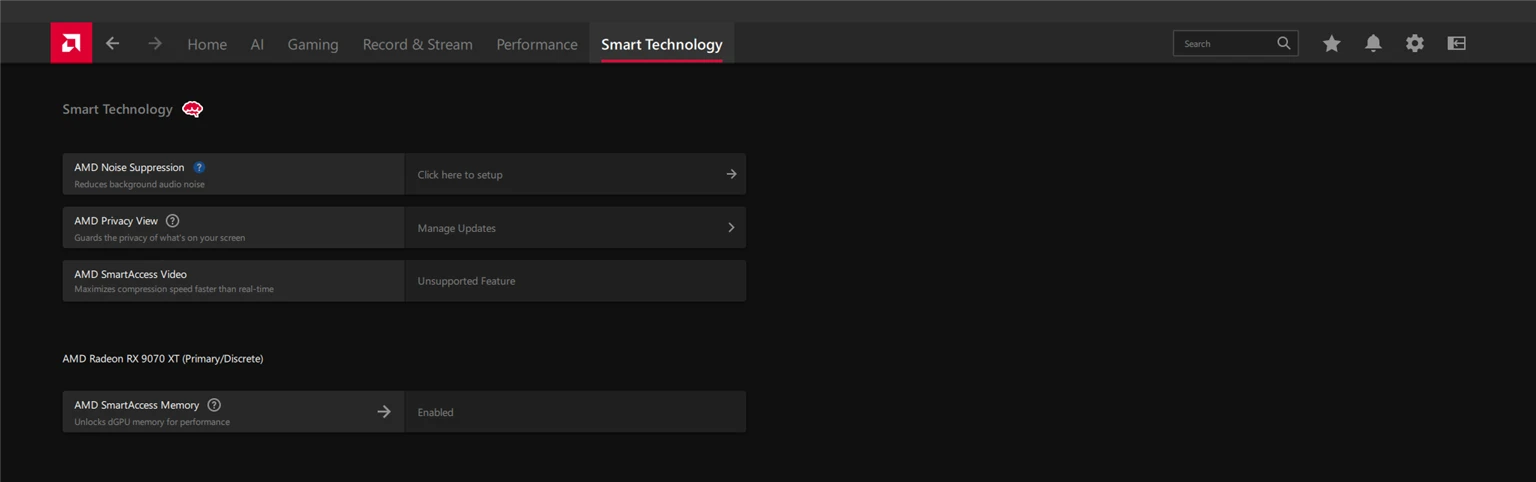
A separate tab for features that have almost nothing to do with games.
- AMD Noise Suppression. Strips background noise out of your microphone and out of incoming audio. It runs on the card, not the processor. If you spend time on calls, this is the best thing on the tab.
- AMD Privacy View. Blurs the screen for anyone looking from the side.
- AMD SmartAccess Video. Speeds up video encoding by splitting the work between integrated and discrete graphics. It needs a processor with an integrated GPU, otherwise it will keep telling you the feature is unsupported.
The bottom of the list, where almost nothing is needed
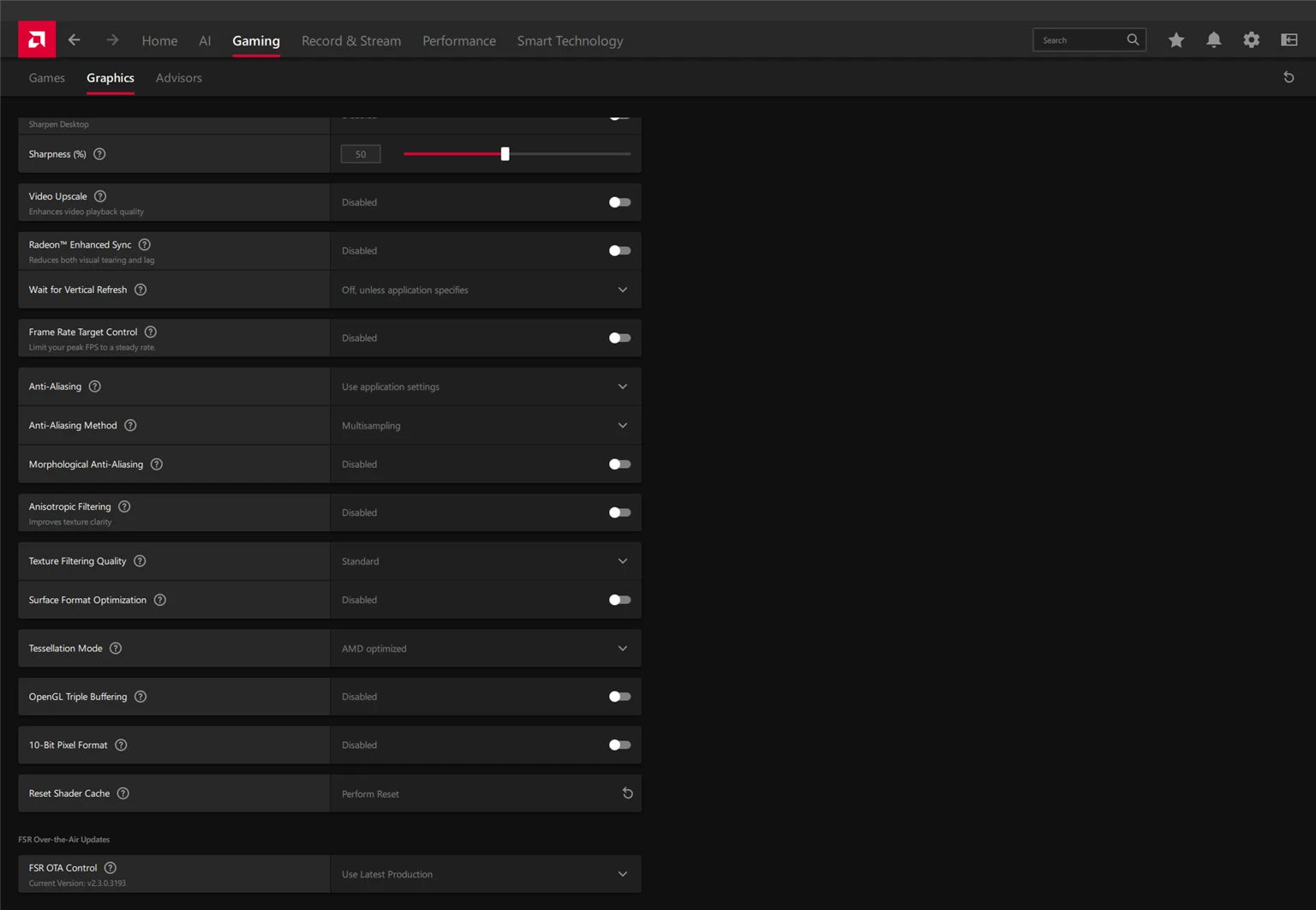
Scroll the Graphics tab to the end and the legacy begins: anisotropic filtering, texture filtering quality, surface format optimization, tessellation mode, OpenGL triple buffering, 10-bit pixel format. Modern games cover all of it sensibly in their own menus, and the driver versions are worth touching only when a game gives you nothing.
Two things down there are genuinely useful.
Reset Shader Cache. If a game started stuttering for the first half hour after a driver update, or odd artefacts appeared, clearing the shader cache fixes it more often than any amount of settings roulette. The first run afterwards will be slower, then it gets better.
FSR OTA Control. A block of its own at the very bottom, and almost nobody notices it. FSR libraries update separately from the driver, and this switch decides whether you take the latest production version or stay where you are. The screenshot shows v2.3.0.3193. If an update made your upscaler smear or flicker, this is where you roll it back, not by reinstalling the driver. On or off. Leave it on. Fresh FSR libraries almost always look better, and they arrive without reinstalling the driver. There is exactly one reason to switch it off: a specific game started smearing or flickering after a library update and you want to roll back and stay on the older version until AMD fixes it.
How to tell whether a setting actually did anything
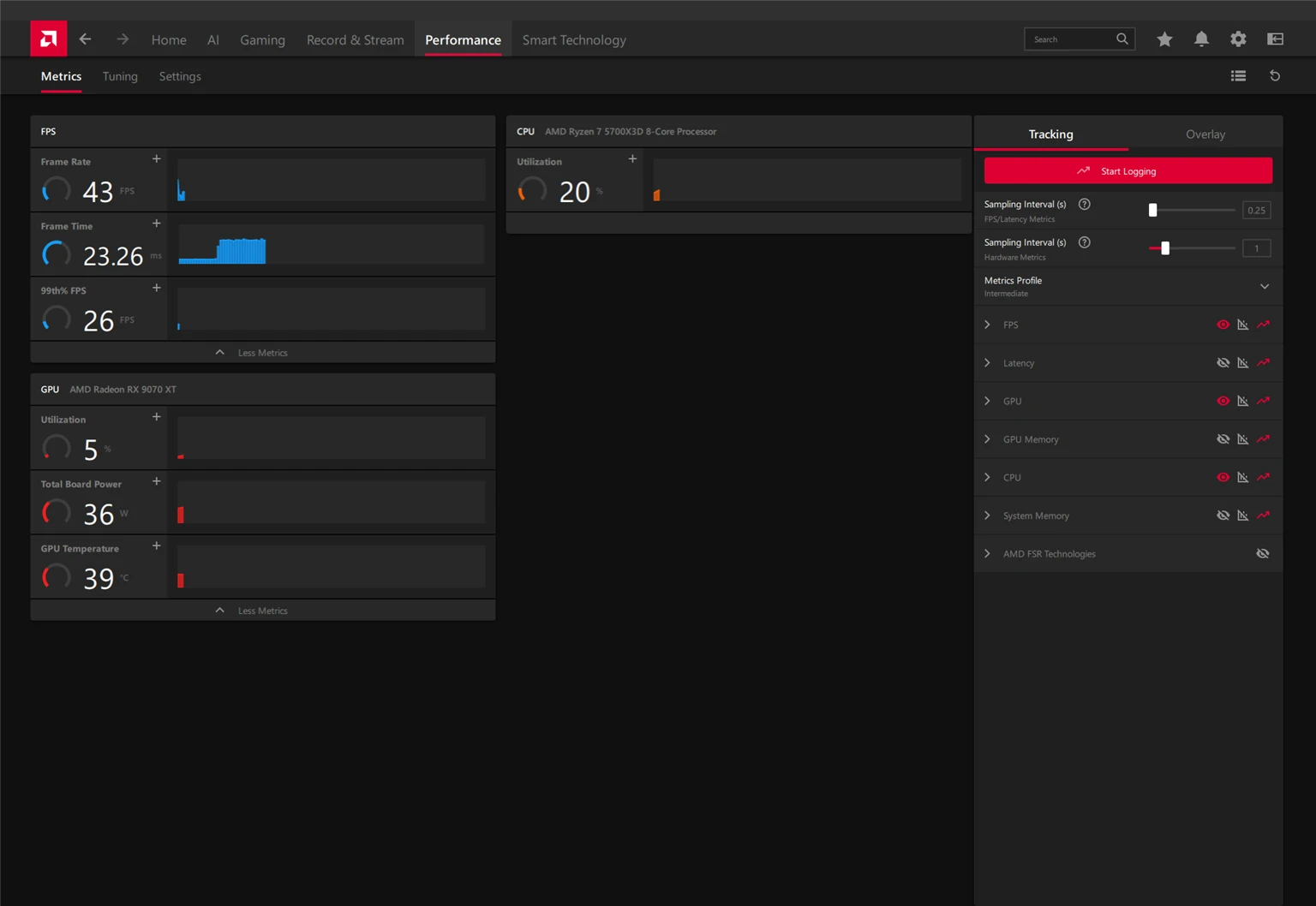
Performance, then Metrics. The point is not to admire numbers, it is to stop judging changes by feel.
Do not watch the average frame rate, watch two other rows. Frame Time is how long one frame takes in milliseconds, and its spikes are exactly what we feel as stutter. 99th% FPS shows how bad it gets at the worst moment. If your average went up but the 99th percentile went down, you made things worse while the counter told you otherwise.
The Tracking panel on the right chooses what to display, and it has a line for AMD FSR Technologies, which tells you whether the upscaler is really running. That one is invaluable, because the known issues for 26.8.1 say outright that FSR sometimes shows as inactive in the Modern Warfare 4 beta while it is switched on.
The in-game overlay is on the neighbouring Overlay tab and comes up on a hotkey. Put it in detailed mode while you tune, then take it back down.
What you can safely skip installing
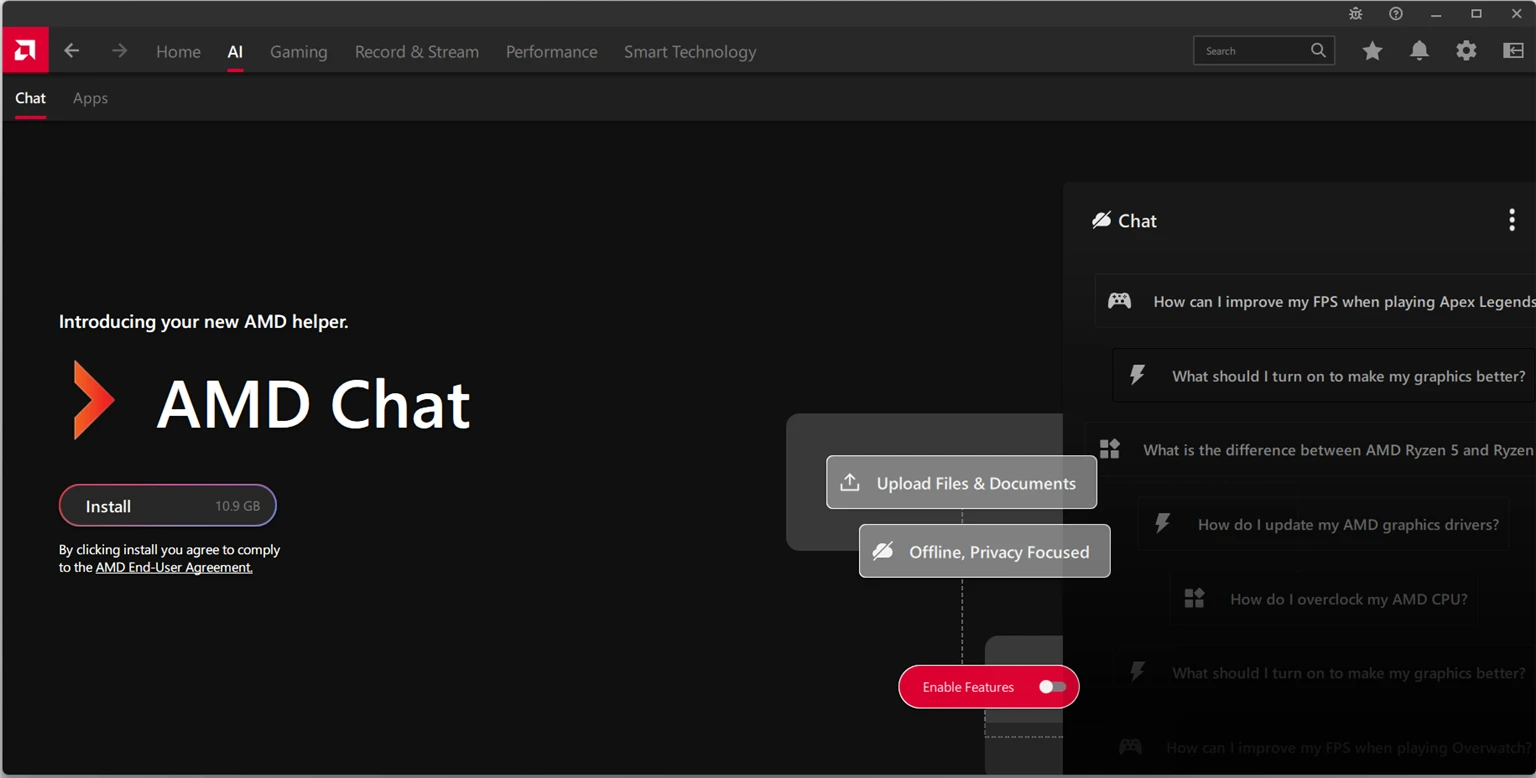
The AI tab is home to AMD Chat, a local chatbot. It genuinely works offline and sends nothing out, and it takes 10.9 gigabytes. Unless you want an offline assistant living inside your graphics driver, that space is better spent on games.
Record & Stream is the built-in capture and streaming. It is decent and the encoding runs on the card. If you already have OBS you can skip the tab, though Instant Replay in it is good: it keeps the last few minutes in memory and saves them on a keypress, after the interesting thing has already happened.
If it got worse
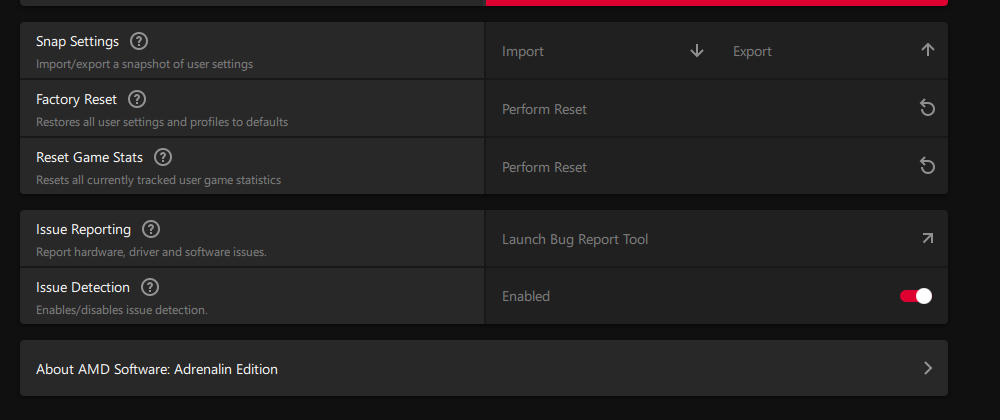
Rollback order, gentlest first.
- A settings snapshot. Settings, System, the Snap Settings row, Export. Take one right now while everything works. Coming back is one click.
- Reset the game profile. If a single game broke, start with its profile rather than the whole driver.
- Factory Reset. Same place, in System. Clears all settings and profiles and leaves the driver in place.
- Roll the driver back. AMD itself recommends installing an older version through the AMD Cleanup Utility rather than over the top.
And a specific case from the official 26.8.1 notes: if you have an RX 9000 and Starfield keeps crashing, AMD tells you plainly to go back to 26.7.1. That is not a forum guess, it is written in the document that ships with the driver.
From the same document: on an RX 9050 with four gigabytes, Cyberpunk 2077 asks you to turn the heavy effects down, because the game itself recommends a minimum of six.
The short version
What I would do on a fresh machine: take a settings snapshot, switch FreeSync on, cap frames at the monitor's refresh rate, switch on FSR Upscaling if the card is RX 9000, check that SmartAccess Memory is enabled, pick the Favor Efficiency preset and make a profile for the one heavy game you play. Ten minutes, and then you can leave the driver alone for months.
Everything else in this article is for when something goes wrong. You will come back then.
Sources
Release notes for AMD Software: Adrenalin Edition 26.8.1: amd.com, release notes section. Contents of HYPR-RX, HYPR-Tune and the compatibility limits: the Adrenalin and HYPR-RX pages on amd.com, footnotes GD-157, GD-158, GD-225A and GD-234C. The renaming of FSR 4 to FSR Upscaling and the make-up of the Redstone set: the FidelityFX Super Resolution page on amd.com. All screenshots taken by the FramesGames editorial team in Adrenalin 26.8.1 on a Radeon RX 9070 XT.