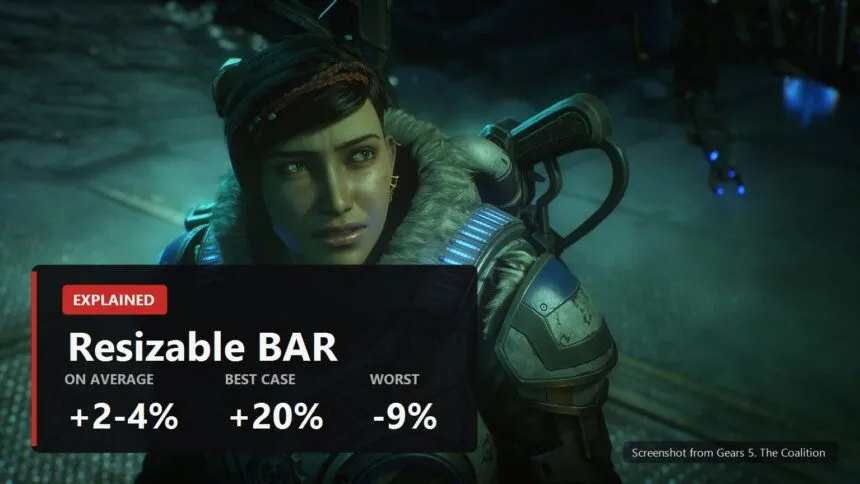
There is a Re-Size BAR Support entry in your BIOS, the internet says you should turn it on, and nobody tells you what it will actually give you. So, straight away: two to four percent more frames on average, up to twenty in the odd game, and minus nine in a couple of cases.
Except in one situation, where it is not an option but a condition for the card to work properly at all. Here is what it is, who has to have it, how to check yours, and what you can break in the process.
What it actually is

Intel's own wording: Resizable BAR is a PCIe capability, a mechanism that allows a device such as a discrete graphics card to negotiate the size of its access window.
In plain terms. The BAR is the window through which the processor sees the graphics card's memory. Historically that window is 256 megabytes, a figure set back when no graphics card came close to holding that much. Today you have 8, 12 or 16 gigabytes in there, and the processor still looks at all of it through a quarter gigabyte slot, shuffling data across in portions.
Resizable BAR removes the slot: the processor gets access to the whole of video memory at once. The memory itself does not get faster, the shuffling simply stops being necessary.
On AMD the same feature is called Smart Access Memory in the Adrenalin app. It is the same thing with a marketing name laid over the same PCIe capability.
What it actually gives you
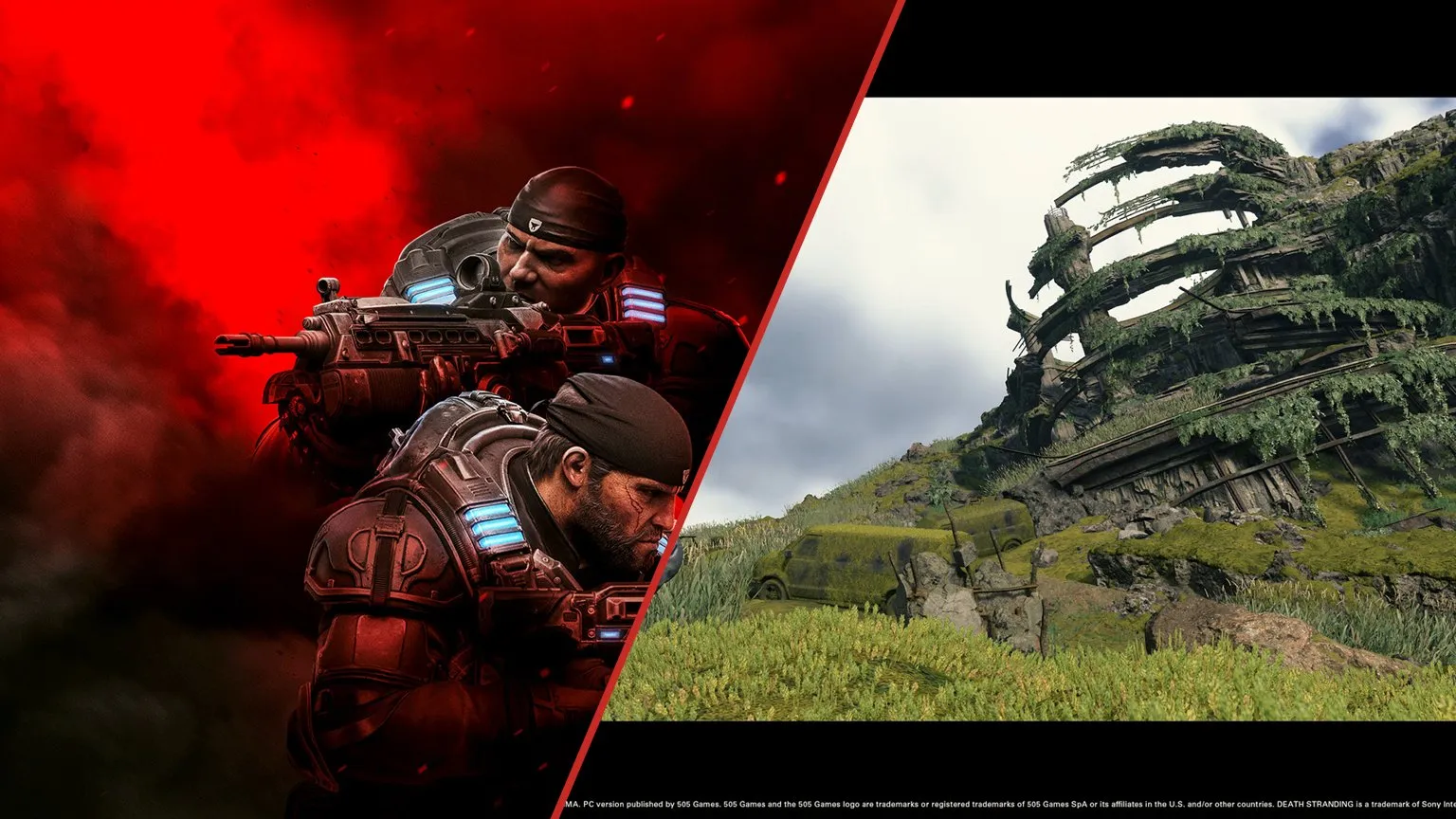
The most thorough public measurement was done by TechPowerUp: twenty two games, three resolutions, RTX 30 cards. The result is honest and boring.
| Case | What happens to frames |
|---|---|
| Average across supported games | plus 2 to 4 percent |
| Best result in the test, Gears 5 | around plus 20 percent |
| Most of the rest | next to nothing |
| Death Stranding, 1080p | minus 9 percent |
Look at that last row. Death Stranding is on NVIDIA's supported list and still loses up to nine percent at 1080p and eight at 1440p. So the feature is not free even where the vendor has allowed it.
The reason is straightforward. If a game engine only knows how to work with a small window, wider access is of no use to it, and the processor still spends cycles managing the larger one. Hence the spread from plus twenty to minus nine inside a single test.
Which is why NVIDIA does not switch the feature on globally but keeps a list of games in its driver profiles and enables it one title at a time, after testing each.

Who has no choice about it
This is where the percentages stop mattering. If you have an Intel Arc card, turn it on, and there is nothing to discuss.
Intel wrote it into its own support pages in plain language: Resizable BAR is required for optimal performance with Intel Arc. The driver itself shows that message when the feature is missing or not working properly, and advises updating the motherboard firmware or contacting its manufacturer.
The losses without it are measured in tens of percent rather than single digits: reported figures run from twenty to forty depending on the workload. The Arc architecture is built around wide access to memory, and without it the card does not behave like a weaker card, it behaves like a broken one.
On NVIDIA support starts with the RTX 3060 and covers the whole 40 and 50 series. On AMD it is RX 6000 and newer. On a modern build the feature is usually on by default, while on a five year old board with updated firmware it is more often off, and the owner has no idea.
How to check whether yours is on

Three ways, any of them takes half a minute.
- On NVIDIA. NVIDIA Control Panel, the Help menu, System Information. There should be a Resizable BAR line reading Yes.
- On AMD. The Adrenalin app, Performance section, then Tuning. The line is called Smart Access Memory.
- Vendor neutral. GPU-Z, the Advanced tab, a Resizable BAR line reading YES.
And one separate check, without which the rest is pointless. Press Win and R, type msinfo32, find the BIOS Mode line. It should say UEFI. If it says Legacy, the system was installed in the old style with an MBR disk, and Resizable BAR will not work no matter how many times you enable it in BIOS.
How to turn it on

The order matters here: the old mode goes off first, the feature itself goes on after.
- Update the motherboard BIOS. Boards from before 2021 often lack support in older firmware, and that is the first thing to check.
- Disable CSM or Legacy Mode, so the machine boots in UEFI.
- Enable Above 4G Decoding. Without it the next entry often does not appear in the menu at all.
- Enable Re-Size BAR Support. Different vendors label it Resizable BAR or Smart Access Memory.
- Save, reboot, then verify with the list above.
If the machine stops booting after CSM goes off, the system is installed in MBR mode. Windows can convert the disk to GPT, but that is a separate operation, and I would not do it for two percent of frames. For an Intel Arc card I would.
What not to do

- Do not force it on for every game. NVIDIA Profile Inspector will do that from the global profile, which switches it on in the titles where it gets in the way as well. The price is not only average frames but the evenness of them: stutter and crashes are both on the table.
- Do not expect a miracle. Two to four percent is less than the gap between two neighbouring card models. If a game is running badly, this is almost certainly not why.
- Do recheck it after a driver change. The recent Adrenalin 26.9.1 says so in its own known issues list: on Windows 10, Smart Access Memory may switch itself off after installation. Silently.
The short version. On Intel Arc, turn it on, it is a condition rather than a setting. On NVIDIA and AMD it is worth having, because it is two to four free percent and the vendor decides where to apply it. And if you are already in the BIOS hunting frames, our walkthrough of the driver settings will get you more than this one entry will.
Sources
The definition of Resizable BAR, the full list of BIOS requirements, the enabling steps and the wording about Intel Arc come from Intel's support articles on intel.com, numbers 000090831 and 000090863. The two to four percent average, the roughly twenty percent result in Gears 5 and the overall picture across twenty two games: TechPowerUp's test on RTX 30 cards at three resolutions. The loss of up to nine percent in Death Stranding at 1080p and eight at 1440p: measurements by TechSpot. NVIDIA's supported card list starting at the RTX 3060 and the driver profile approach are described in NVIDIA's own materials. The known issue with Smart Access Memory switching off on Windows 10 is listed in AMD's official notes for the Adrenalin 26.9.1 driver. The explanation of the access window and the table are ours.