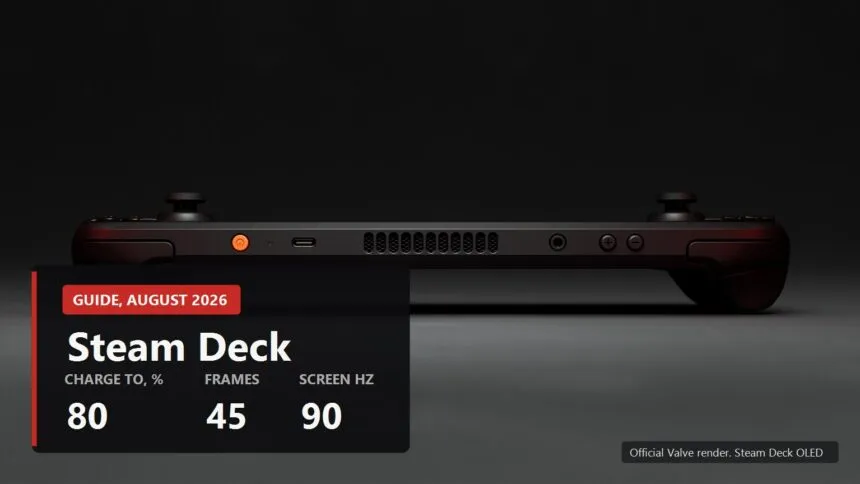
Box opened, SteamOS updated, first game installed. Most people stop there and just play, which is fair enough: the Deck works out of the box. But a handful of settings, scattered across different menus, change how the thing feels more than any mod will.
The order below is the order I would actually do them in. The first one protects the battery, the second one fixes stutter, the last one means you never have to touch any of this again. Checked on SteamOS 3.8.16, the current stable build at the end of August 2026.
First work out which Deck you ended up with
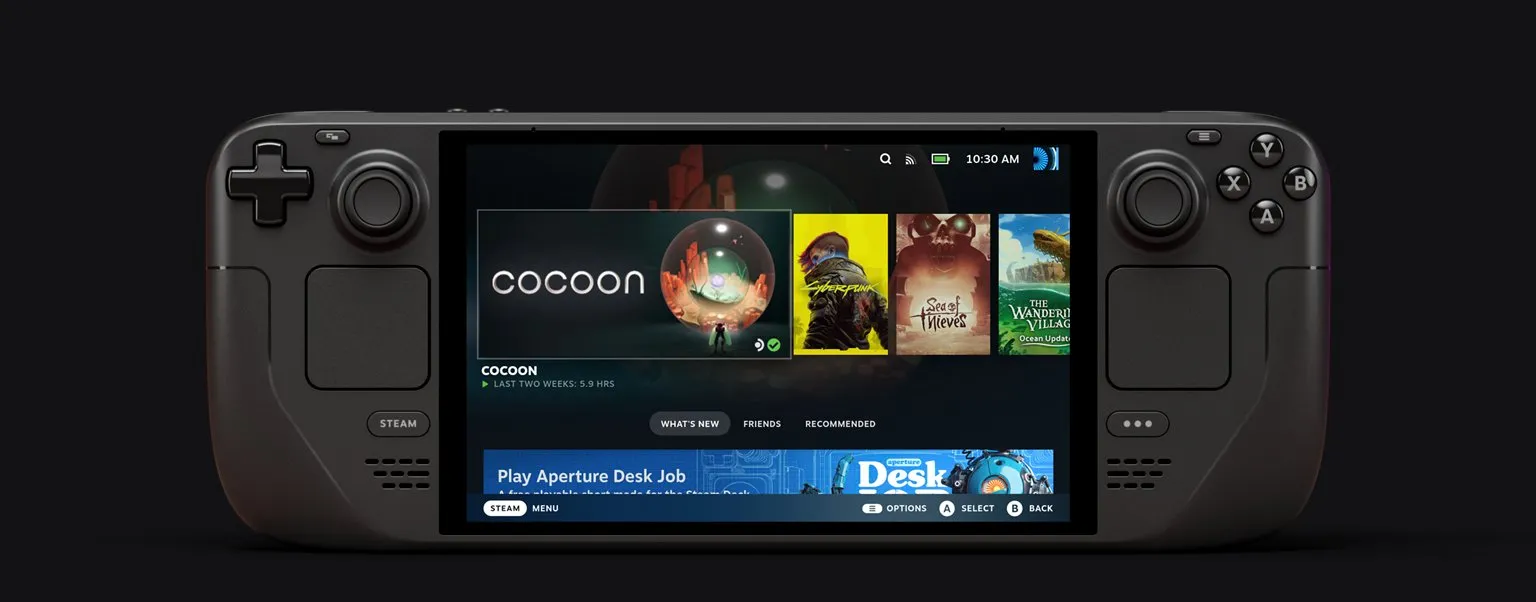
Not pedantry. Half of what follows depends on the answer. Valve ended production of the LCD model around 20 December 2025 and the remaining stock cleared by roughly February 2026. A new Deck today is an OLED, and an LCD only comes to you secondhand.
The difference that matters here is one number: the OLED panel goes up to 90 Hz, the LCD tops out at 60. That comes back twice below.
| Steam Deck OLED | What is in it |
|---|---|
| Display | 7.4 inch, 1280 by 800, up to 90 Hz |
| Brightness | 1000 nits peak in HDR, 600 nits in SDR |
| Processor | 6 nm, Zen 2, 4 cores and 8 threads, 2.4 to 3.5 GHz |
| Graphics | 8 RDNA 2 compute units at 1.6 GHz |
| Memory | 16 GB LPDDR5 6400 |
| Storage | 512 GB or 1 TB NVMe plus a microSD slot |
| Battery | 50 Wh, quoted at 3 to 12 hours of play |
There is no point waiting for a second version either. Valve says plainly that it is waiting for a generational change in silicon, and that more speed at the same battery life is not enough to ship on. No Deck 2 in 2026.
Cap the charge at eighty per cent
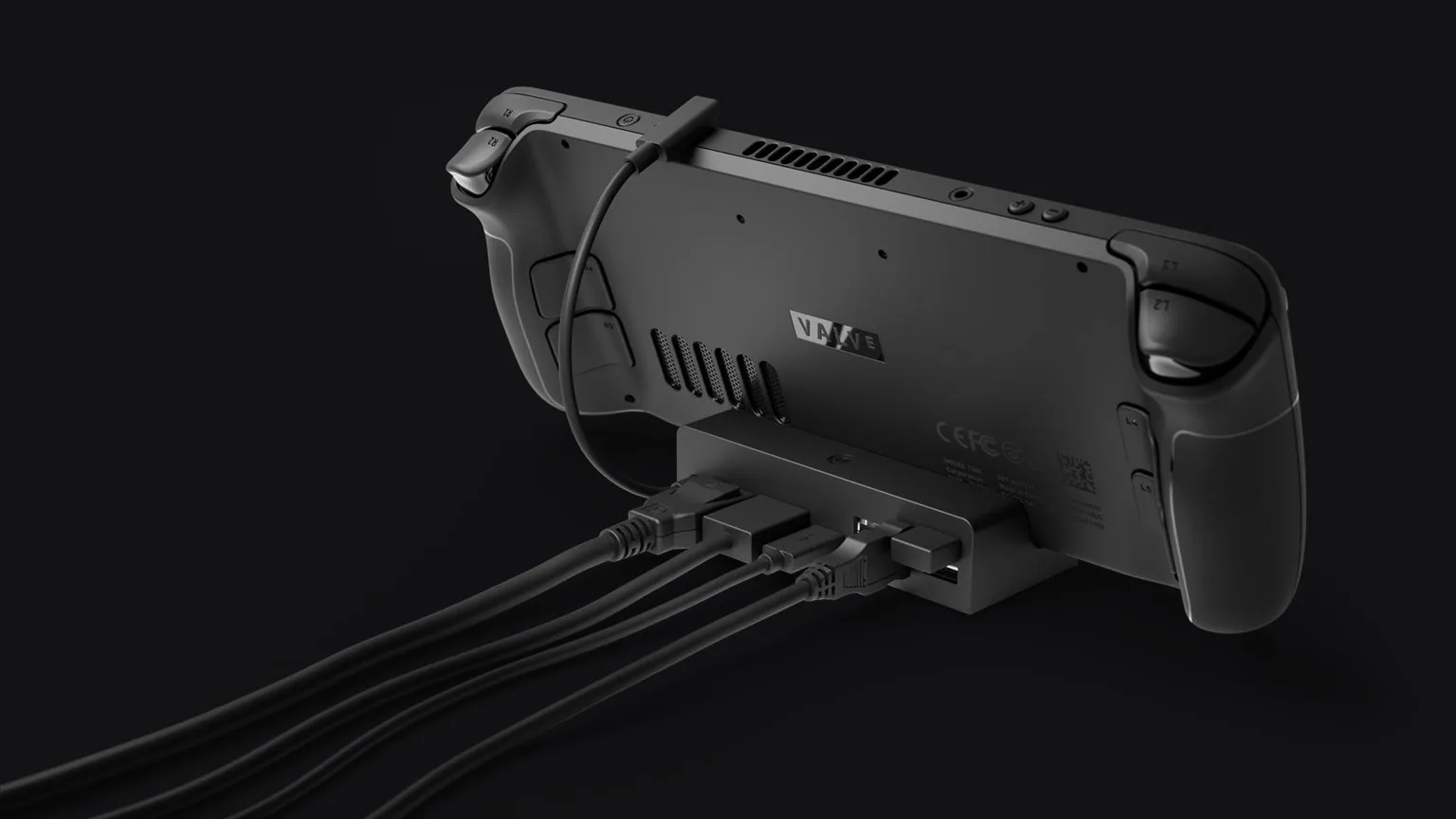
Settings, then Power, then the charge limit. It arrived in SteamOS 3.7.8 and somehow still escapes most people.
A lithium cell ages fastest when it is held full. If your Deck lives in a dock and you play plugged in, it sits at a hundred per cent for weeks and quietly loses capacity while it does.
- Turn it on if the Deck spends more time docked or charging by the bed than travelling with you.
- Leave it off if you genuinely take it out for the whole day and need every last per cent.
- Before a trip the toggle comes off in five seconds and the Deck tops itself up to a hundred.
Match the frame cap to the refresh rate

This is the one worth opening the article for. The point is not more frames, it is evenly spaced frames, because unevenness is exactly what we perceive as stutter.
Quick Access menu, the button with three dots under the right side of the screen, Performance section. There are two sliders in there: frame limit and refresh rate. People usually move one or the other. They belong together.
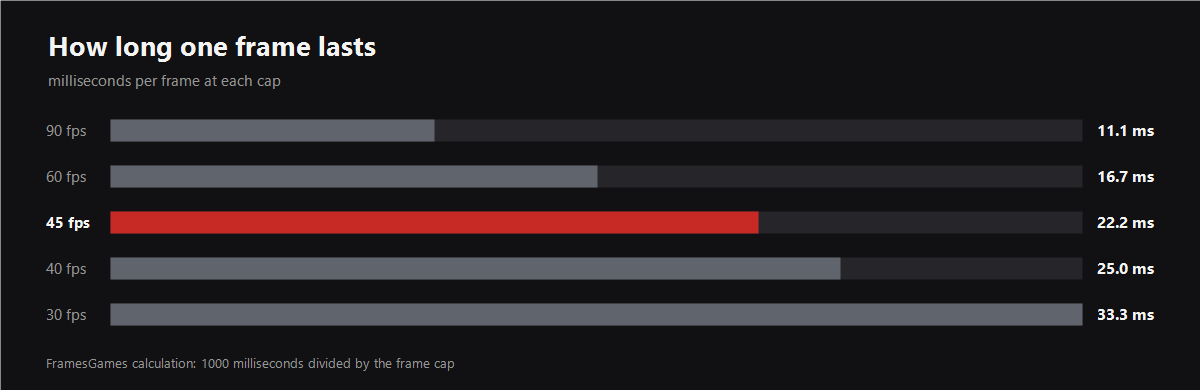
The arithmetic is almost embarrassingly simple. A 90 Hz panel refreshes every 11.1 ms. At 45 fps every frame is held for exactly two refreshes and the picture moves like a metronome. Run that same 45 fps on a 60 Hz panel and each frame is held for one refresh, then two, then one, and your eye picks that up immediately.
| Refresh rate | Frame caps that divide evenly |
|---|---|
| 90 Hz (OLED) | 90, 45, 30 |
| 60 Hz (OLED and LCD) | 60, 30, 20 |
| 40 Hz (LCD) | 40, 20 |
Working recipe for the OLED: heavy game at 45 fps and 90 Hz, light game at 90 and 90. On the LCD the pairing is 40 fps at 40 Hz, since its refresh slider runs from 40 to 60.
A locked 45 feels better than a wobbling 50 to 60. That sounds like heresy, so try it on any large game and come back.
Bring the power limit down
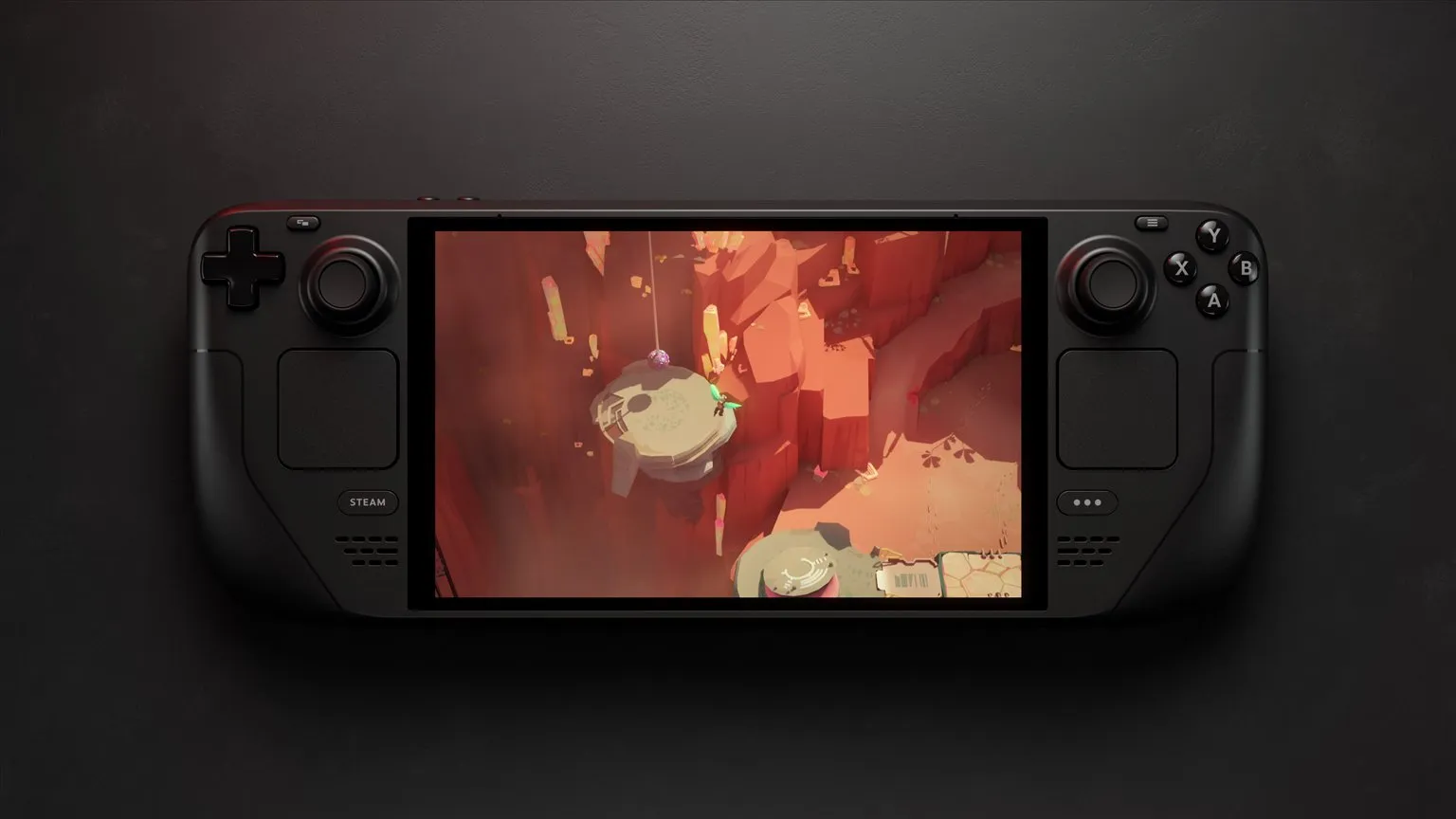
In the same Quick Access menu, switch on Advanced View and you get sliders for the power limit and the GPU clock. The limit runs from 3 to 15 W.
The order matters more than any specific number, because the number is different in every game:
- Frame cap first. Set 45 and work against it.
- Then drop the watts one at a time while the counter still holds those 45.
- When it dips, put one watt back. That is your setting for that game.
The performance overlay lives in the same place and will show frames, watts and temperature. Put it on the detailed level while you are tuning, then take it back down, otherwise it just sits in the way.
What you win here is not frames. It is silence and runtime. The fan at eight watts and the fan at fifteen are two different devices. How many hours each watt actually buys we worked out separately.

Switch on per-game profiles
The toggle sits in that same Performance section and is called the per-game profile. Without it, everything you just dialled in for a heavy game follows you into a pixel-art platformer that has no use for 15 W.
Turn it on once and forget about it: SteamOS remembers the sliders separately for every game. Probably the most underrated setting in the whole system.
What not to bother with
Briefly, the advice that turns up in other lists and that I would skip.
- Chasing 60 fps in heavy games. The Deck will not reach it everywhere, and the battery empties twice as fast trying. A locked 45 is the honest target.
- Sitting at 15 W permanently. In an indie game that only warms your palms and spins the fan.
- Formatting the microSD card in Windows. Format it inside SteamOS, Settings then Storage, or games will install onto it badly.
- Third party firmware for a couple of per cent. The warranty is not worth it, and SteamOS 3.8 already pulled controller latency down from 5 to 8 ms to 100 to 500 microseconds.
All of it takes about fifteen minutes, and half of that is spent hunting the right wattage in one particular game. After that the Deck simply works and you stop opening these menus. The next question is usually what actually runs on it, and for that we have a breakdown of the twenty most played games on Steam.
Sources
Official Steam Deck specifications: steamdeck.com/en/tech. Press materials and renders: steamdeck.com/en/press. Contents of SteamOS 3.8 and the controller latency figure: SteamOS release notes. End of LCD production and the plans for a second version: Valve statements, August 2026. The frame time calculation and the table of even divisions are ours.