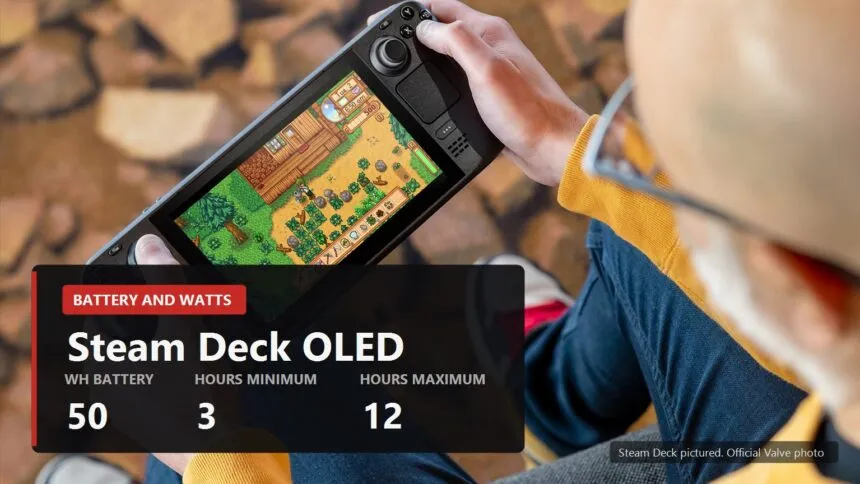
Valve promises 3 to 12 hours of play. You loaded something heavy, and the Deck died in an hour and forty minutes. Both numbers are real, and what sits between them is not luck but a single figure almost nobody looks at.
Here is where the fourfold spread comes from, how to find your own power draw in two minutes, and which settings actually buy you hours instead of just buying you the feeling that you did something. Checked on SteamOS 3.8.16.
Three hours and twelve are two power draws, not two devices
The official spec sheet puts the OLED battery at 50Wh, and the discontinued LCD at 40. After that it is fifth grade arithmetic: capacity divided by what the device is eating right now gives you hours.
Put Valve's own promise into that formula and see what was actually promised.
| Model | Battery | Claimed hours | So the draw is |
|---|---|---|---|
| Steam Deck OLED | 50Wh | 3 to 12 | 16.7W down to 4.2W |
| Steam Deck LCD | 40Wh | 2 to 8 | 20W down to 5W |
So Valve is not playing games with you. Twelve hours is a 2D indie at low brightness, three hours is a big modern game running flat out. No contradiction, just one device in two states.
Which leaves exactly one number worth watching: how many watts the Deck pulls from the battery in this particular game with your particular settings.
The wattage slider limits the chip, not the device

This is where most people miss. The power limit in the quick access menu runs from 3 to 15W and applies to the processor and its graphics, meaning one chip. Everything else draws on top of that.
Screen, memory, storage, wifi, board, fan. The slider touches none of it. So 6W on the slider does not mean the battery is giving up 6W, and dividing fifty by the slider number gets you nothing.
How much higher the real draw runs, I cannot tell you, and nobody honestly can: it depends on brightness, on whether wifi is on, on the game itself. The good news is that the Deck reports the real number itself, and it does not take long to find.
Your own draw takes two minutes to measure

Load a game you actually play, not a benchmark scene. Then the three dot button on the right below the screen, Performance, and set the performance overlay to its full level. One of the rows is battery draw in watts.
Give the game a couple of minutes to settle. In the first seconds the figure jumps around while the system finishes compiling shaders and streams in the level, and you cannot read anything into it.
Then divide 50 by what you see. Nine watts means roughly 5.6 hours. Seventeen means about three, which is precisely the bottom end of Valve's claim.
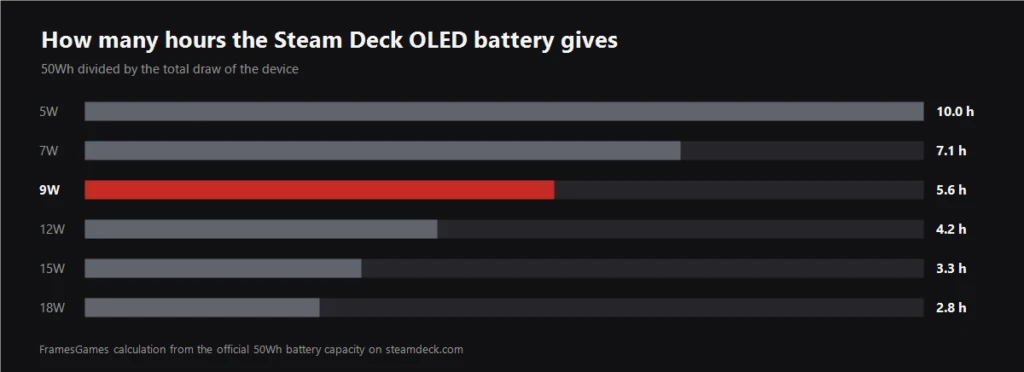
| Draw | Hours from a full battery | What that usually is |
|---|---|---|
| 5W | 10.0 | 2D indie at 30fps, brightness low |
| 7W | 7.1 | light 3D game at 45fps |
| 9W | 5.6 | mid sized game with the watts dialled in |
| 12W | 4.2 | big game with nothing capped |
| 15W | 3.3 | heavy game, slider pushed up |
| 18W | 2.8 | everything maxed, brightness maxed |
That right column is deliberately loose. Your game may land between two rows, and that is fine: the table is there so you know the order of magnitude, while the exact figure comes from your own overlay.
What actually buys you hours

In descending order of payoff, from what I have tried myself.
- The frame cap. The biggest lever by a wide margin. With no ceiling you are asking the chip to render as much as it can, and it can do plenty, expensively. Picking a number that divides evenly into the refresh rate is covered in the settings to change right after you buy one.
- The power limit, second. Drop it only after the frame cap is set, otherwise you cannot tell which change did what.
- Brightness. An underrated line item. On OLED it shows up more than you would expect, because the pixels light themselves, and a dark game at medium brightness eats noticeably less than the same game at full.
- Wifi off in single player. The saving is small, but it is free. The only cost is no notifications and no cloud saves until you reconnect, which is easy to forget about.
- Sleep instead of quitting. The Deck suspends instantly and spends almost nothing while asleep. The habit of backing out to the menu between sessions costs you fan minutes for no reason at all.
One more thing about per game profiles: without them the watts you dialled in for a heavy game follow you into a pixel art 2D one, where nobody needs them. The toggle sits in the same section.
When capping frames does nothing

It happens: you set the cap, you drop the watts, and the draw barely moves. Usually that means the bottleneck is the processor, not the graphics.
The same overlay tells you. If GPU load is wandering around sixty percent and you still cannot hold your frame rate, the graphics side is idling while it waits on the CPU. Dropping watts further is pointless here, you would only be taking away capacity the chip was not using anyway. Strategy games love this, so do simulations with a lot of objects, and so do older titles that never learned to use more than one core.
The second dead end is a game that honestly loads the hardware but has nowhere left to go below thirty frames. That leaves frame generation through Lossless Scaling, which makes the picture smoother out of the frames you already have.
Just do not expect it to save battery. Generation costs watts of its own and adds latency between your input and what the screen does about it. It buys you smoothness, not hours, and those are different purchases.
What I would not do

- Do not judge by the first ten minutes. Right after install the system is still catching up on the shader cache, and the draw reads high. Measure on your second session.
- Do not chase a round number on the slider. Eight watts is not better than nine if the game holds its frames at nine and drops them at eight. You will feel the dropped frames, you will not feel the extra watt.
- Do not flash third party firmware for a few percent. You will definitely lose the warranty and you will probably not gain the hours.
Common sense still applies, of course: if you are boarding a nine hour flight, no slider is going to produce nine hours for you. A power bank with fast charging solves that better than any setting, and unlike a setting it works in every game.
In ordinary life, where a session runs an hour or two, the gap between 12W and 9W is the gap between "I need to find an outlet" and "I will finish this and plug in after". That is worth one evening with the overlay open.
Sources
Battery capacity and claimed play time for the Steam Deck OLED and LCD: official specifications at steamdeck.com/en/tech. Press renders and photography: steamdeck.com/en/press. The watt hour to watt conversion and the hours per draw table are ours, and the formula is simply capacity divided by draw.